

How Shopify App Store Search and Listings Work: A Developer's Guide to Visibility
Shopify documents what an app must meet to be listed, but not how App Store search ranks listings, so focus on what you can control.
- Published
- 26 Nov 2026
- As of
- 16 Nov 2026
This guide is for developers who build public Shopify apps and want better listings without gaming the system. We cover what Shopify documents about requirements, listing basics, performance, reviews and distribution, and we're clear about where ranking is not publicly disclosed.
What Shopify documents, and what it doesn't
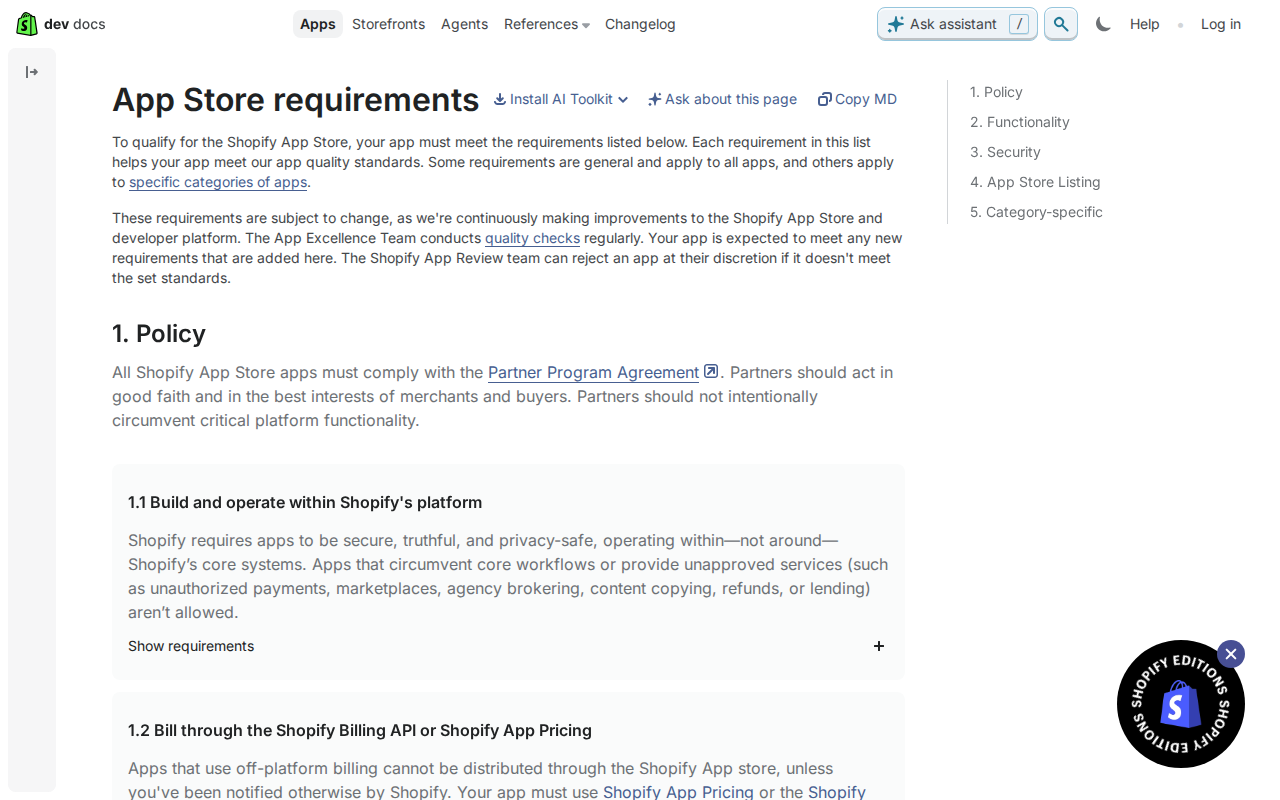
Shopify publishes what an app has to meet to be listed. The App Store requirements page sets out the standards, and the App Review team can reject an app at its discretion if it falls short. The App Excellence Team runs quality checks regularly, and apps are expected to meet any new requirements added to that page. Treat the page as a checklist you revisit, not a one-off gate. A practical habit: re-read it before each release, especially the authentication, billing and API sections.
What Shopify doesn't publish is how App Store search ranks results. The docs describe requirements, best practices and review rules. They don't describe how listings are ordered. So any claim that a particular tweak lifts your position is a guess, ours included. Our reasoning is that meeting the documented standards and describing your app plainly tends to help, because it keeps you eligible and makes it easier for merchants to see what the app does. That is reasoning, not a measured result.
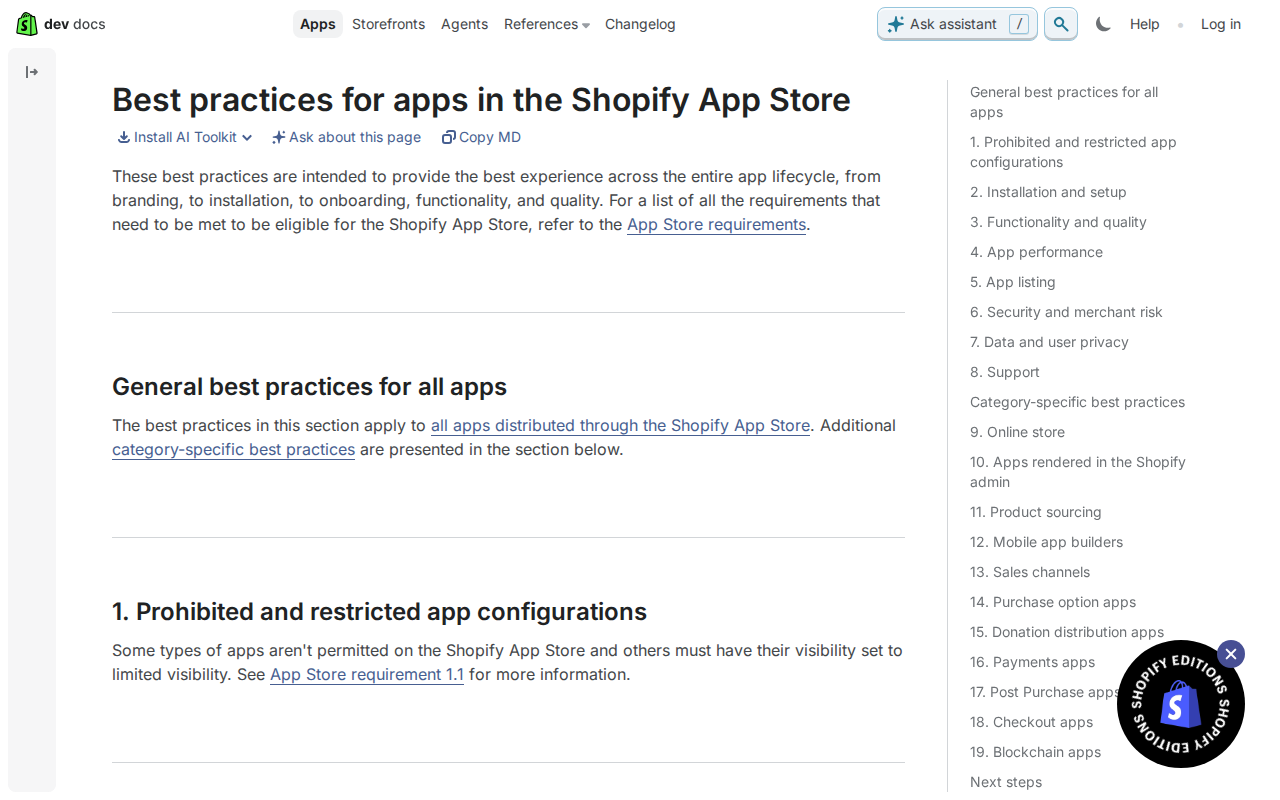
The best practices guide gives you concrete things to build to. Authorise with OAuth straight away, avoid pop-up windows for essential steps like approving charges, and use Shopify App Pricing so billing runs through the merchant's Shopify subscription. Let merchants change plan without contacting support or reinstalling. Keep your storefront footprint light too: the guide says an app shouldn't reduce Lighthouse performance scores by more than 10 points, and that scores vary between runs, so average a few consecutive tests before you submit.
Listing basics are documented as well. Keep the app name within the length limit and clearly different from other apps. Follow the icon guidance, which means no text, screenshots or Shopify trademarks. On reviews, the rule is plain: fake and incentivised reviews are strictly prohibited, and the consequences include demotion or delisting. Earning reviews through a good app and good support is the only route the docs leave open.
Get the listing basics right
Every approved public app gets a listing on the Shopify App Store, whether you choose full or limited visibility. So the listing is not a prize you win. It is the page merchants land on, and it is worth getting right before you worry about anything else.
Start with the name. Shopify's best practices doc says to use 30 characters or fewer, which is the maximum length an app name can be. The name also must not be identical to, or confusingly similar to, another app's name. That is a good reason to check the store for near matches before you commit to branding and a domain.
Then the icon. The same doc asks for 1200px by 1200px, in JPEG or PNG, and says to avoid text, screenshots, Shopify trademarks and copying other brands. Our tip: write the name and design the icon so a merchant can tell what the app does at a glance. A short, plain name that says the job (reviews, bundles, back-in-stock alerts) tends to help because merchants skim search results quickly. With no text allowed in the icon, a simple shape that hints at the function does the rest.
Meet the requirements that gate approval
Approval comes first, and visibility only matters once you're through the door. Shopify's App Store requirements say an app must meet the listed requirements to qualify, and the App Review team can reject an app at its discretion if it doesn't meet the set standards. The App Excellence Team also runs quality checks regularly, so a requirement added later is one your app is expected to meet too. Treat the requirements page as a living document and reread it before each submission.
On the technical side, the requirements page is specific. Embedded apps must use session tokens for authentication. They must also work without relying on third-party cookies or local storage, including in incognito mode on Chrome. Our tip: before you submit, open the app in a Chrome incognito window and walk through install, onboarding and the main flows. It's a cheap test, and it catches the storage assumptions that tend to creep in during development. New public apps must also be built exclusively with the GraphQL Admin API. The REST Admin API has been considered legacy since October 2024, so don't start anything new on it.
Billing and sign-in are covered too. The best practices guide recommends authorising with OAuth immediately, before any other steps, even if the merchant has installed and uninstalled the app before. It also says not to use pop-up windows for essential steps such as OAuth or approving charges. For charging, apps that use off-platform billing can't be distributed through the App Store unless Shopify has told you otherwise. Use Shopify App Pricing or the Shopify Billing API, and let merchants upgrade and downgrade plans without contacting support or reinstalling. In practice, that means a plan switcher inside your app that calls the billing API, not a support email address.
Keep your performance impact low
Keep your app's effect on storefront speed small. Shopify's best practices say an app shouldn't reduce Lighthouse performance scores by more than 10 points. Lighthouse is the free audit tool built into Chrome that scores how quickly a page loads and responds. Treat that limit as a budget you spend carefully, not a target to creep towards.
Shopify measures the impact as a weighted average across three page types: Home, Product details and Collection. The weights are not equal. Collection and Product details pages count for far more than the home page, so test those first. If your app adds a widget to product pages, such as a reviews block or a size guide, that is where a slow script hurts your score most. Lighthouse results also vary from run to run, so run it often while you build and average a few consecutive tests before you submit. One lucky run proves little.
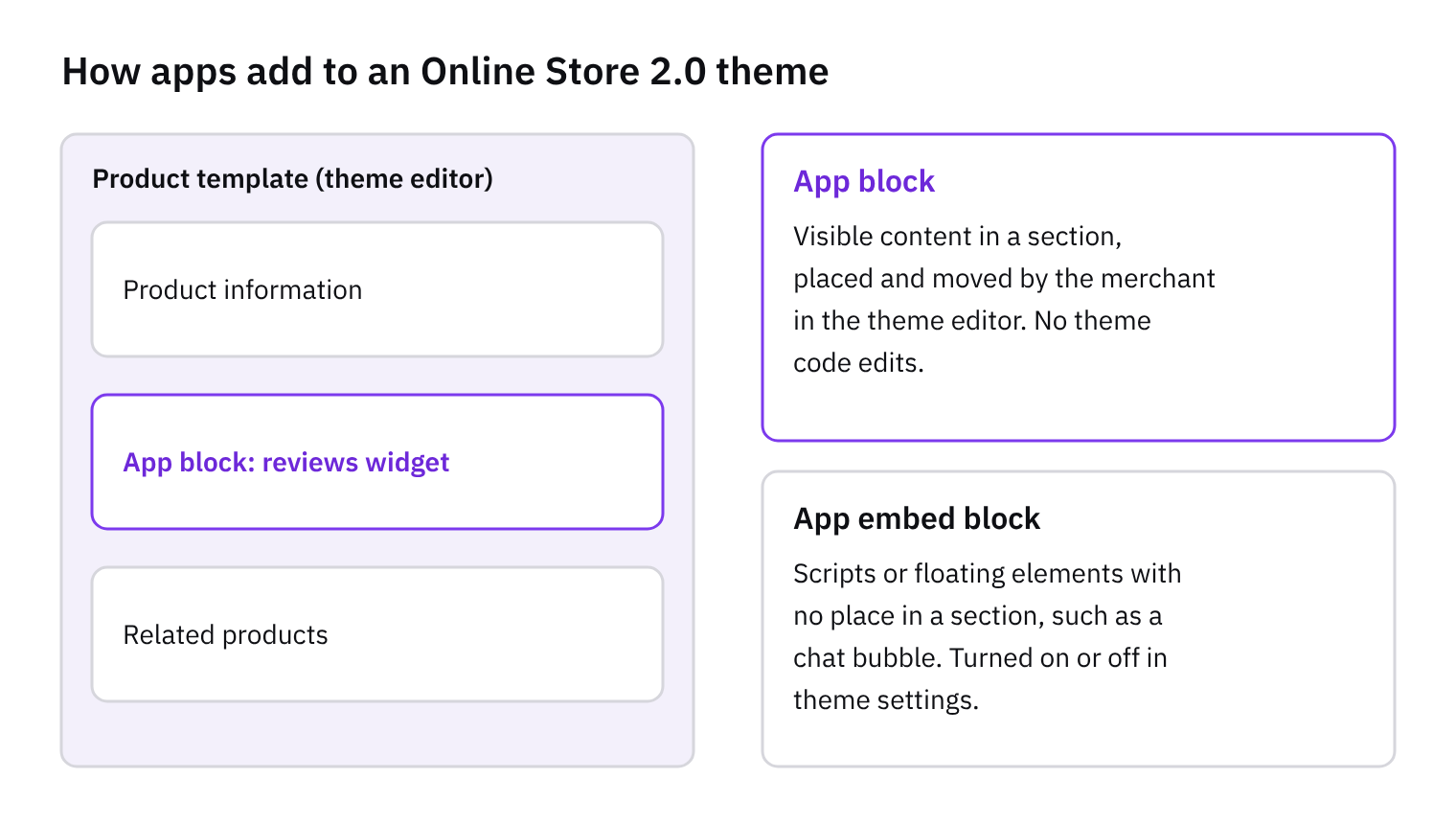
For storefront features, we'd build with a theme app extension and app blocks rather than injecting code by hand. Merchants add the block in the theme editor, and removing the app leaves no stray code behind. Load your JavaScript late or on demand, and avoid shipping a big script to pages that don't use the feature. This tends to help because the browser has less to download before the page is usable.
Theme app extensions also have a Liquid size limit of 100 KB. Apps on custom distribution, or with Built for Shopify status, can request an exception. Shopify warns that a larger Liquid size could affect performance, so monitor it and trim regularly even if you are well inside the limit.
Earn reviews the legitimate way
Reviews are the one part of your listing you can't write yourself, so it's tempting to nudge them. Don't. The App Store requirements are blunt: reviews that are fake or incentivised are "strictly prohibited". Shopify says developers who break this may face "the removal of reviews, demotion or delisting of your app, or termination of your Partner account." Losing a Partner account is a lot to risk for a few extra stars.
The rule also covers the quieter tricks. Per the same requirements page, it is forbidden to offer incentives or withhold features in exchange for reviews, whether that happens inside the app or through external channels. So no discount for a five-star rating. No locking a feature behind a review prompt. No emailing customers a gift card after they post. If a prompt feels like a trade, treat it as one and remove it.
Here's what works instead: ask at a natural moment of success, with no reward attached. That might be right after a merchant finishes a first import, publishes their first set of changes, or sees a report that did what they hoped. This tends to help because the merchant is already pleased, so a request feels like a fair question rather than a bargain. As a developer, you can trigger the prompt from an event in your app, and make it easy to dismiss and never show again.
If you suspect a competitor of fake reviews or other violations, report it through Shopify's own channels rather than retaliating. The route for reporting can change, so check Shopify's current guidance before this goes live and link to it directly.
Choose distribution before you build
Decide on distribution before you write any code, because you can't change the method after you select it. Public distribution is for an app built for many merchants. Custom distribution is typically for an app built for one specific merchant. If you pick wrongly, you start again with a new app, so settle this with the merchant or your product owner first.
The trade-offs are practical. Public distribution requires approval from Shopify and registering for the Shopify App Store, which has a one-time fee. Custom distribution needs no approval, but a custom app can't charge merchants through Shopify's app billing system. If your plan depends on Shopify billing, that points to public. Also note that apps built with App Home UI extensions can only use custom distribution, so check your architecture against that before committing.
Here is a quick checklist before you start. Write down who will install the app: one merchant, or many. Confirm how you will get paid, and whether that needs Shopify billing. List the extension types you plan to use and check them against the distribution docs. If you build theme app extensions, remember the 100 KB Liquid size limit; custom apps and Built for Shopify apps can request an exception, but the docs warn that a larger Liquid size could affect performance, so monitor it. Finally, if the app includes checkout extensions, the design requirements apply to custom and public apps alike.
Get the weekly digest
One email every Monday: the week’s new guides and articles, plus the Shopify deadlines coming up and what’s been announced. Free, and you can unsubscribe in one click.
Sources
- https://shopify.dev/docs/apps/launch/shopify-app-store/app-store-requirements · shopify.dev · accessed 16 Nov 2026
- https://shopify.dev/docs/apps/launch/shopify-app-store/best-practices · shopify.dev · accessed 16 Nov 2026
- https://shopify.dev/docs/apps/launch/distribution · shopify.dev · accessed 16 Nov 2026
AI-assisted, reviewed by Scott. Every claim is checked against the sources above.