

How to check a Shopify app is safe before you install it
A practical checklist for judging a Shopify app before install: read its access scopes, understand protected customer data, treat the Built for Shopify badge as one signal, and know what to do when…
- Published
- 24 Oct 2026
- As of
- 21 Oct 2026
Most apps on your store come from third-party developers, so you're trusting someone else's code with your data. This guide is for merchants and the developers who advise them. It covers what permissions mean, how Shopify limits customer data, what the Built for Shopify badge does and doesn't tell you, and a short review routine for installing and removing apps.
Start with who built it and who supports it
Most apps for Shopify stores are built by third-party developers, not by Shopify. That matters because support and accountability sit with the developer. The Shopify Help Center says that if you need help with an app built by a third party, you should contact the developer directly. So before you install anything, find out who that developer is and how you'd reach them.
Here's a tip that takes two minutes. Note the developer's contact route and support channel before you click install, and put them somewhere your team can find them, such as a shared doc or the app's entry in your project notes. Then decide who on your team owns the app afterwards. That person watches for updates, answers questions about what it does, and makes the call to remove it. Apps with no owner tend to linger long after anyone remembers why they were added.
Custom apps deserve a closer look. Shopify's help documentation notes they can be used to access your store's data directly through Shopify's APIs. If an agency or freelancer built one for you, ask who built it, who maintains it, and what it can reach. As a developer, you can answer that by reading the scopes it was granted, which we cover next.
Read the access scopes before you approve
Access scopes are the permissions an app asks for, and you approve them when you install it. Treat that screen as a real decision, not a hurdle. Shopify's access scopes documentation says apps should request only the data they need to function, and that Shopify restricts scopes for apps without a legitimate use for the associated data. That is a useful backstop, but it doesn't replace your own judgement.
Watch the write scopes. Any scope that writes a resource also grants read access to it, so an app asking to write orders can also see them. Orders have a time limit: by default, order scopes cover only orders created within the last 60 days. For older orders an app needs read_all_orders, which requires Shopify approval. Customer payment method access (read_customer_payment_methods) needs approval too. Approval tells you Shopify has checked the request. It doesn't tell you the feature is worth the access.
One more detail helps when you compare apps. Marketplace order scopes are accepted as an alternative to the full order scopes, but they aren't equivalent: they return only the orders attributed to the app, not every order on the store. That is a narrower grant, and it tends to suit apps that only need to see their own sales.
Here's the tip. Ask whether each scope matches a feature you will actually use. A review app asking for broad order history deserves a question, because you might reasonably expect it to need only recent orders to send review requests. Ask the developer why, and if the answer is vague, look for an alternative. If you advise merchants, make this a standard step before anyone clicks install.
How Shopify protects customer data
Shopify splits protected customer data into two levels. Level 1 covers customer data excluding name, address, phone and email fields. Level 2 covers data that includes those fields. Because they directly identify customers, each of those fields has to be requested individually in the Partner Dashboard, according to Shopify's protected customer data documentation. Shopify approves access only if the requested data is the minimum the app needs to provide its functionality to merchants. Apps must also tell merchants what personal data they process and why.
For you as a merchant, that gives you something concrete to check. Read the app's privacy information and ask whether the data it mentions matches what you'd expect it to need. A reviews widget has little reason to want customer phone numbers, for instance. If the wording is vague, ask the developer directly. A clear answer is a good sign, and a evasive one tells you something too.
Developers, there's a quirk to build around. Unapproved fields come back redacted, so a response can look normal while missing data. GraphQL requests to unapproved types return an HTTP 200 response with an error message in the errors hash. Don't rely on the status code to detect failure. Check the errors hash on every response, and make your code cope with redacted or absent fields. That also helps when you're advising a merchant on why an app's data looks incomplete.
What the Built for Shopify badge tells you
The Built for Shopify badge is the highest level of recognition an app can reach, according to Shopify's developer docs. You'll see it on the app card wherever the app appears in the Shopify App Store. Most of the criteria are checked automatically, while others only get evaluated when the developer applies. Apps are also reviewed annually. If one no longer meets the standards, Shopify emails the developer, who then has 60 days to fix the failures.
The highlights are the most practical part. Works with the latest themes tells you the app is compatible with Online Store 2.0 themes, and the same highlight covers clean uninstalls. That matters if you're adding something to the storefront, because leftover code is a common reason a theme gets messy. Use directly in the Shopify admin means the app is embedded in the admin, which tends to suit teams who want to manage it without jumping between tools.
Treat the badge as a quality signal, not a guarantee. It doesn't replace reading the access scopes the app asks for before you approve them. Tip: for storefront widgets, look for theme app extension support. It tends to help because the app's blocks are added and removed through the theme editor, so taking the app out later is cleaner than hunting through theme files.
A review routine for installing and removing apps
Make the routine boring and repeatable. Where you can, install the app on a development or staging store first. Then read the scopes screen before you approve anything. Merchants approve scopes at install, so that screen is your decision point. Ask whether each scope matches what the app claims to do. Shopify's access scopes documentation says apps should request only the data they need, and that any write scope also grants read access to the same resource. So a write scope on orders or customers deserves a question to the developer. Also note which scopes need Shopify approval, such as older orders or customer payment methods. Those are sensitive areas, so check the app really needs them.
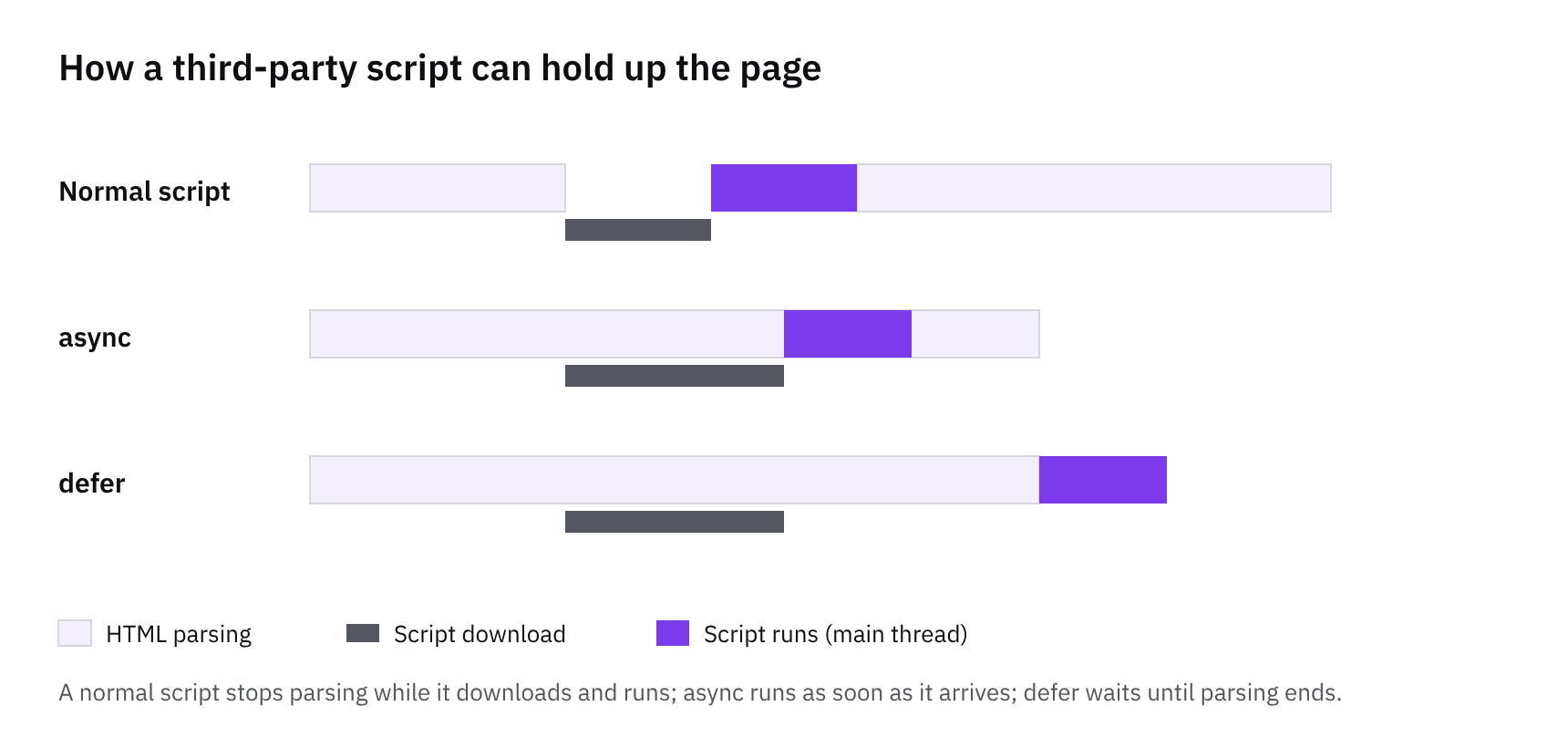
Next, look at what the app does to your storefront. A review widget or popup tool often adds JavaScript to every page, and that tends to cost speed because the browser has to download and run it. Our diagram on script loading shows why it pays to check what each app adds. Test a key product page before and after install. The Built for Shopify badge is a useful signal, since Shopify's documentation says those apps are reviewed annually. Its Works with the latest themes highlight also covers Online Store 2.0 compatibility and clean uninstalls. It is not a substitute for reading the scopes. Keep a simple list of installed apps, with a named owner for each, the reason it is there, and the developer's contact. Shopify's Help Center says to contact third-party developers directly for support, so that list saves time when something breaks.
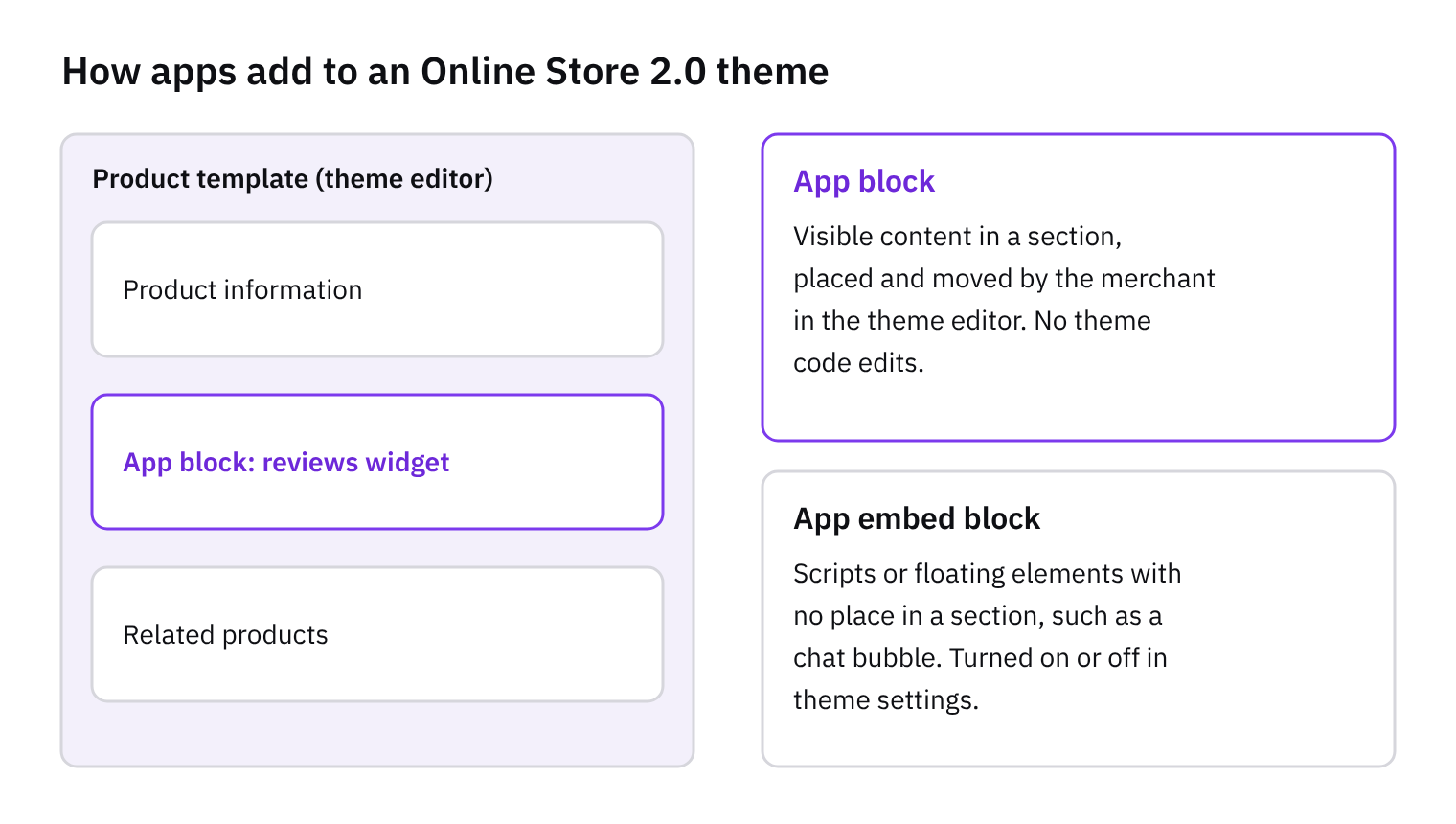
When you remove an app, uninstall it from the Shopify admin first. Then open the theme code and check for leftovers: snippets, script tags, or blocks the app added. Apps built on app blocks and app embeds usually tidy up more cleanly, as our diagram on theme app extensions explains. Older apps that edited theme files directly are the ones most likely to leave code behind. Finally, put a review in the calendar. Every so often, go through the list and remove anything nobody uses. Fewer apps means less data access to worry about and less code on your pages.
Get the weekly digest
One email every Monday: the week’s new guides and articles, plus the Shopify deadlines coming up and what’s been announced. Free, and you can unsubscribe in one click.
Sources
- Shopify Help Center | Apps for your Shopify store · help.shopify.com · accessed 18 Oct 2026
- Shopify API access scopes · shopify.dev · accessed 18 Oct 2026
- About Built for Shopify · shopify.dev · accessed 18 Oct 2026
- Work with protected customer data · shopify.dev · accessed 18 Oct 2026
AI-assisted, reviewed by Scott. Every claim is checked against the sources above.