

How to Customize Shopify Theme Sections Safely: Spacing, Banners, Text and Custom CSS
Start with theme settings, move to custom CSS when the editor runs out, and edit Liquid only when the structure itself has to change.

- Published
- 10 Nov 2026
- As of
- 2 Nov 2026
Most layout tweaks on a Shopify theme don't need code, and the ones that do rarely need much. This guide is for merchants and developers who want to change spacing, banners and text in theme sections without breaking the theme. We cover what the editor already does, how to write CSS that holds up, and when to open the Liquid.
Start with what the section already offers
Before you touch any code, open the theme editor and see what the section already lets you change. Shopify's Help Center says you can customise your theme there, and it's the safest place to start. Changes made in the editor sit within the theme's own structure, so they tend to survive updates better than edits buried in a stylesheet.
It helps to know how the pieces fit. Shopify's developer docs describe sections as Liquid files that make reusable modules of content merchants can customise. A section can also include blocks, which let merchants add, remove and reorder content inside it. So if you want another heading, an extra button or a different order, check for a block before you reach for CSS. The same goes for the section's own settings, because a theme developer has often already exposed the option you're after.
Checking first saves work for a practical reason. Per the same docs, sections placed in a JSON template or section group can be removed and reordered in the editor, whereas statically rendered ones can't. If a section looks stuck in place, that may be how the theme includes it, not a missing setting. Also note that a statically rendered section that appears in several theme files exists only once, so a settings change applies everywhere it's used. Knowing that before you tweak something stops a fix on one page from quietly changing another.
If the setting you want genuinely isn't there, you've lost nothing and you now know what to ask for. Write down what the editor can't do, then move on to custom CSS or Liquid with a clear, narrow goal.
When a section has no setting for it
When the theme editor has no setting for what you want, pick the lightest fix that will last. If it is purely visual, such as spacing or a background, custom CSS is usually enough. If the merchant needs to change it themselves, add a schema setting. If the markup or logic has to change, that is a Liquid edit. This tends to work because each step up adds more to maintain and more that can break on a theme update.
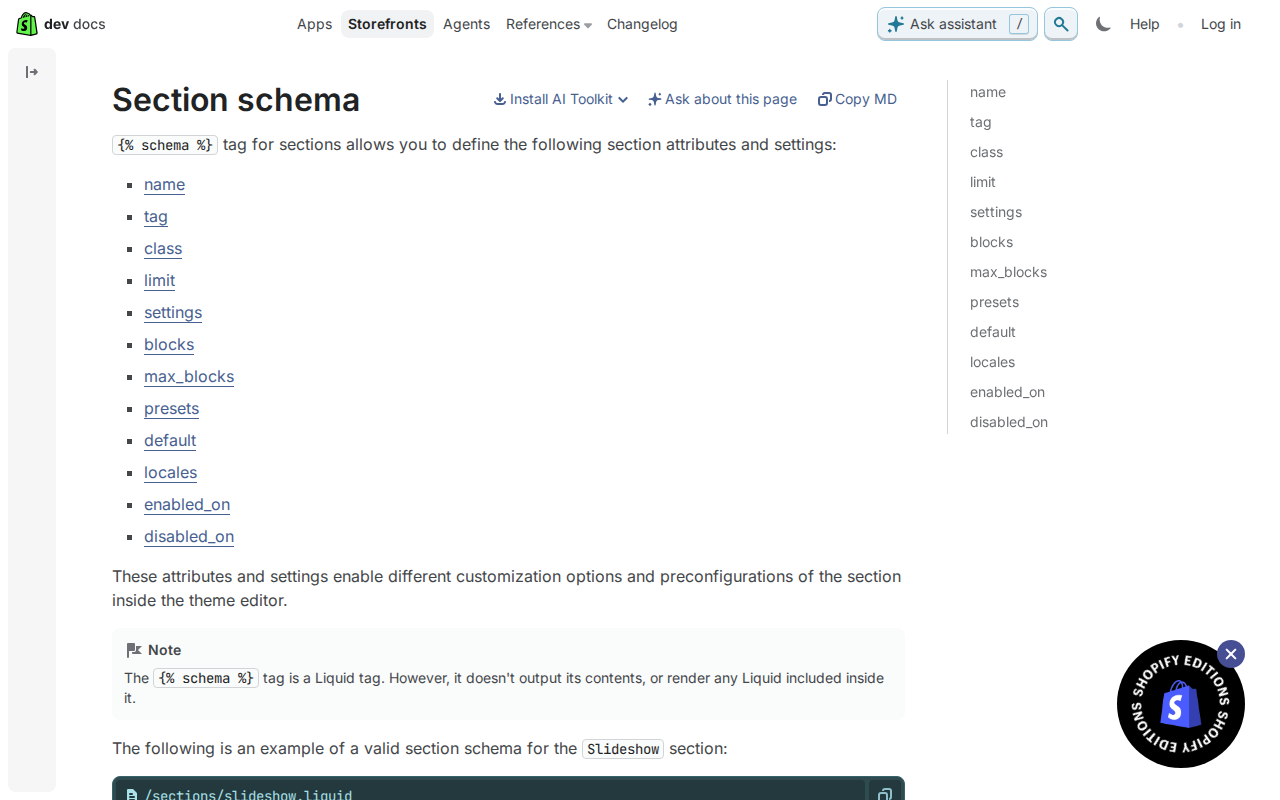
For the CSS route, you need a hook. The section schema docs say the class attribute adds to the shopify-section class on the section wrapper element. So give your section a class of its own and target that in your stylesheet. This tends to help because you avoid long selectors that depend on the theme's internal structure. Remember that the Sections docs say a statically rendered section exists only once, so a change to its settings applies everywhere it appears. Check where it is used before you restyle it.
Schema edits are stricter than CSS, so go carefully. The section schema docs say each section can have only a single schema tag, and it must contain only valid JSON. A second schema tag, or one placed inside another Liquid tag, causes a syntax error when you edit theme code. Setting IDs must also be unique within a section, and duplicates cause an error. When you add a setting, check its ID against the existing ones first, and work on a duplicate of the theme rather than the live one.
Writing custom CSS that actually applies
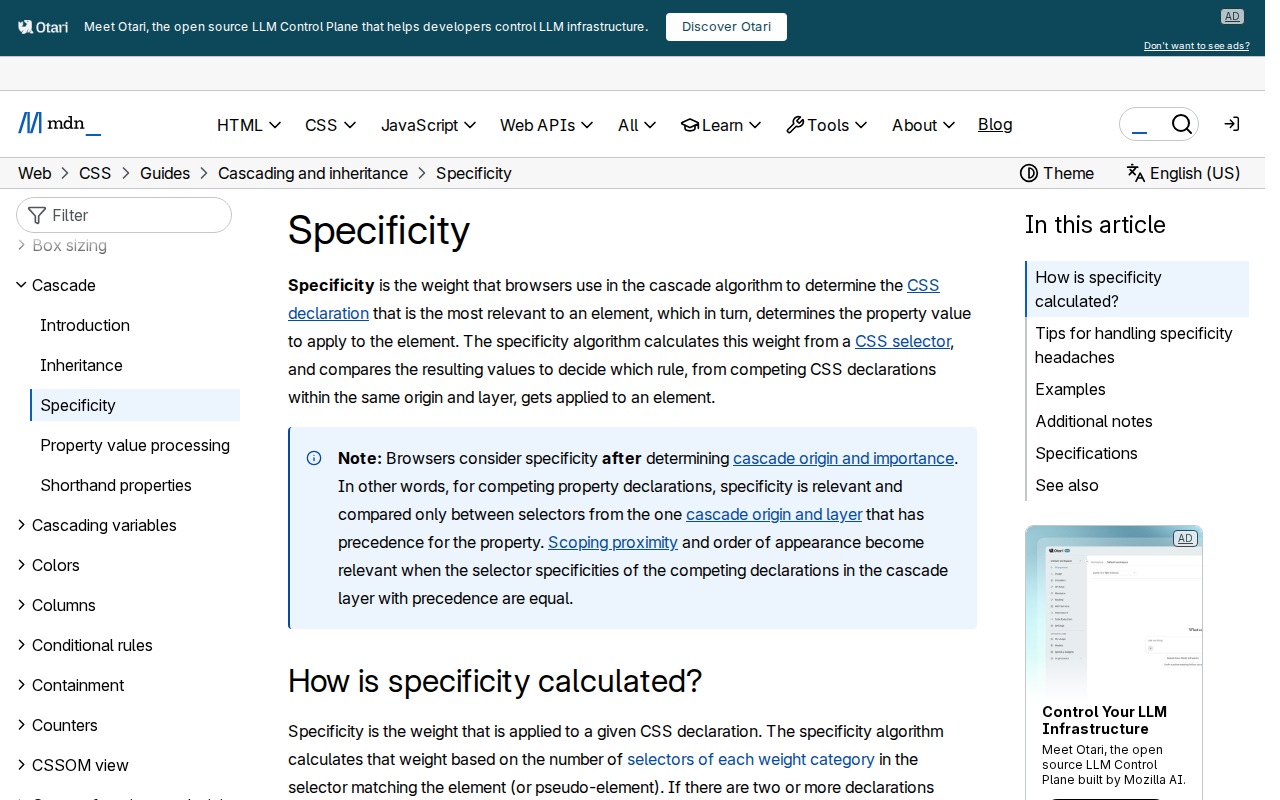
Custom CSS that does nothing is usually a specificity problem. Specificity is the weight browsers give each selector when two rules fight over the same element. MDN describes it as three columns: ID, class and type. An ID adds weight in the first column, a class, attribute selector or pseudo-class in the second, and a type selector like a heading or div in the third. The columns are compared left to right, so one ID beats any number of classes. If the weights tie, the rule declared last wins. That is why where your CSS loads matters as much as what it says.
Keep selectors light. Shopify's section schema docs show that each section wrapper carries the shopify-section class, and that the class attribute lets you add your own class to it. A single class on that wrapper is a tidy hook: it scopes your rule to one section without reaching for IDs or long chains of descendants. This tends to help because a low-weight rule is easy to override later, by you or by the next developer. Heavy selectors force heavier ones to beat them, and the stylesheet gets harder to read.
Treat !important as a last resort. MDN says using it to override specificity is bad practice and should be avoided for that purpose. It does have one narrow job: it is the only way to beat inline styles. Before you reach for it, check whether the theme is writing an inline style, and whether a lighter selector placed later in the cascade would do the job.
The :where() pseudo-class is handy when you write defaults you expect others to override. Per MDN, it and its parameters count as zero weight, as does the universal selector. A rule wrapped in :where() will lose to almost any normal rule, so a theme section can ship sensible styling and let merchants or child rules change it without a fight. Be careful with :is(), :has() and :not(). They add no weight themselves, but the selectors inside them do.
Editing Liquid and blocks safely
Before you touch any Liquid, duplicate the theme. Shopify's own guidance is to make a backup copy so you can discard your changes and start again. Treat it as step one every time. Be careful with deletions too: a deleted theme file can't be recovered, and removing one might break the theme. Duplicate first, then delete. Shopify also says code editing is only for people who know HTML and CSS and have a basic grasp of Liquid, so if that isn't you, hand the job to someone who does.
Use Theme Check as you work. The code editor includes it, and it gives feedback as you write instead of letting you find errors on the live theme. It can flag things like parser-blocking scripts, translation inconsistencies and missing templates. Keep an eye on the schema too. A section can have only one schema tag, it must hold valid JSON, and setting IDs must be unique within the section. A second schema tag or a duplicate ID causes an error, so those are easy mistakes to catch early.
Be wary of statically rendered sections. The Shopify developer docs say to avoid them where possible, because merchants can't remove or reorder them. There's a second catch: if you render one in several theme files, only one instance exists. Change its settings in one place and every location changes. Where you can, reference sections from a JSON template or section group instead, so each page keeps its own settings. A section also needs presets in its schema before merchants can add it through the theme editor.
Theme blocks follow similar rules. They live in the blocks folder, carry their own schema, and need presets to show up in the block picker. To let a section accept all theme blocks, add the type @theme to its blocks attribute. Blocks can't read variables from outside, and you can't pass them variables the way you would with a snippet. So pass data through block settings, or read from the section object, which blocks can reference.
Finally, test inside the theme editor. When merchants edit a section there, its HTML is updated on the existing page without a reload, but JavaScript that runs on page load won't run again. A slider or accordion may look fine on the live store and then stop working after a setting change in the editor. This tends to be easier to fix if your script listens for the editor's section events and sets itself up again, rather than relying on page load alone.
A safe workflow and what to do next
Work in this order: theme settings first, custom CSS second, Liquid edits last. Settings are the safest because the theme editor is built for them, and they survive theme updates better than code does. Shopify's Help Center says you can customise your theme in the theme editor, so check there before you open a file. Different themes ship different layouts and options, so a tweak that needs code in one theme may be a single setting in another.
Before you touch code, duplicate the theme. Shopify's guidance on editing theme code recommends this, and it gives you a backup that is easy to discard if the change goes wrong. The same page says to edit code only if you know HTML and CSS and have a basic grasp of Liquid, so it is a fair point to hand off to a developer if that isn't you. Do your work in the copy, preview it, and only publish once it looks right. Take care with deleting files: Shopify warns that a deleted theme file can't be recovered and might break the theme. The code editor also includes Theme Check, which gives feedback as you write, so you catch mistakes before they reach a live theme.
When you do need Liquid, make the result editable. Hard-coded values leave the merchant stuck asking a developer for every small change. Instead, add a setting to the section's schema and read it in the markup, so the merchant changes it in the theme editor. This tends to help because the next person to adjust the spacing or banner text doesn't need to open code at all. Shopify's section docs also say to avoid statically rendering sections where you can, because merchants can't remove or reorder them. Reference the section in a JSON template or section group instead. If you do render one statically in several files, remember only one instance exists, so a settings change applies everywhere it appears.
Get the weekly digest
One email every Monday: the week’s new guides and articles, plus the Shopify deadlines coming up and what’s been announced. Free, and you can unsubscribe in one click.
Sources
- Sections · shopify.dev · accessed 2 Nov 2026
- Section schema · shopify.dev · accessed 2 Nov 2026
- Shopify Help Center | Shopify themes · help.shopify.com · accessed 2 Nov 2026
- Shopify Help Center | Editing theme code · help.shopify.com · accessed 2 Nov 2026
- Quick Start · shopify.dev · accessed 2 Nov 2026
- Specificity - CSS | MDN · developer.mozilla.org · accessed 2 Nov 2026
AI-assisted, reviewed by Scott. Every claim is checked against the sources above.