

How to speed up a Shopify store without installing an app
You can make a Shopify store noticeably faster without adding an app: fix the LCP image, tidy theme code, handle fonts and scripts, then check real-user data.

- Published
- 17 Oct 2026
- As of
- 17 Oct 2026
This guide is for merchants and the developers who build their themes. It covers app-free speed work in the theme itself: Liquid, images, fonts, third-party scripts and Online Store 2.0 features. It ends with how to check the result using Core Web Vitals.
Know what you are aiming for
Before you change anything, know the target. Core Web Vitals are three measures of real user experience: LCP (Largest Contentful Paint) for loading, INP (Interaction to Next Paint) for interactivity, and CLS (Cumulative Layout Shift) for visual stability. Google uses them as a ranking signal, according to Shopify's theme performance guidance, so they matter to search as well as to shoppers.
Stores passing all Core Web Vitals
Show the data
| Shopify, Liquid theme | 72% |
|---|---|
| Shopify, headless | 51% |
| Salesforce Commerce Cloud | 33% |
| Other and custom | 46% |
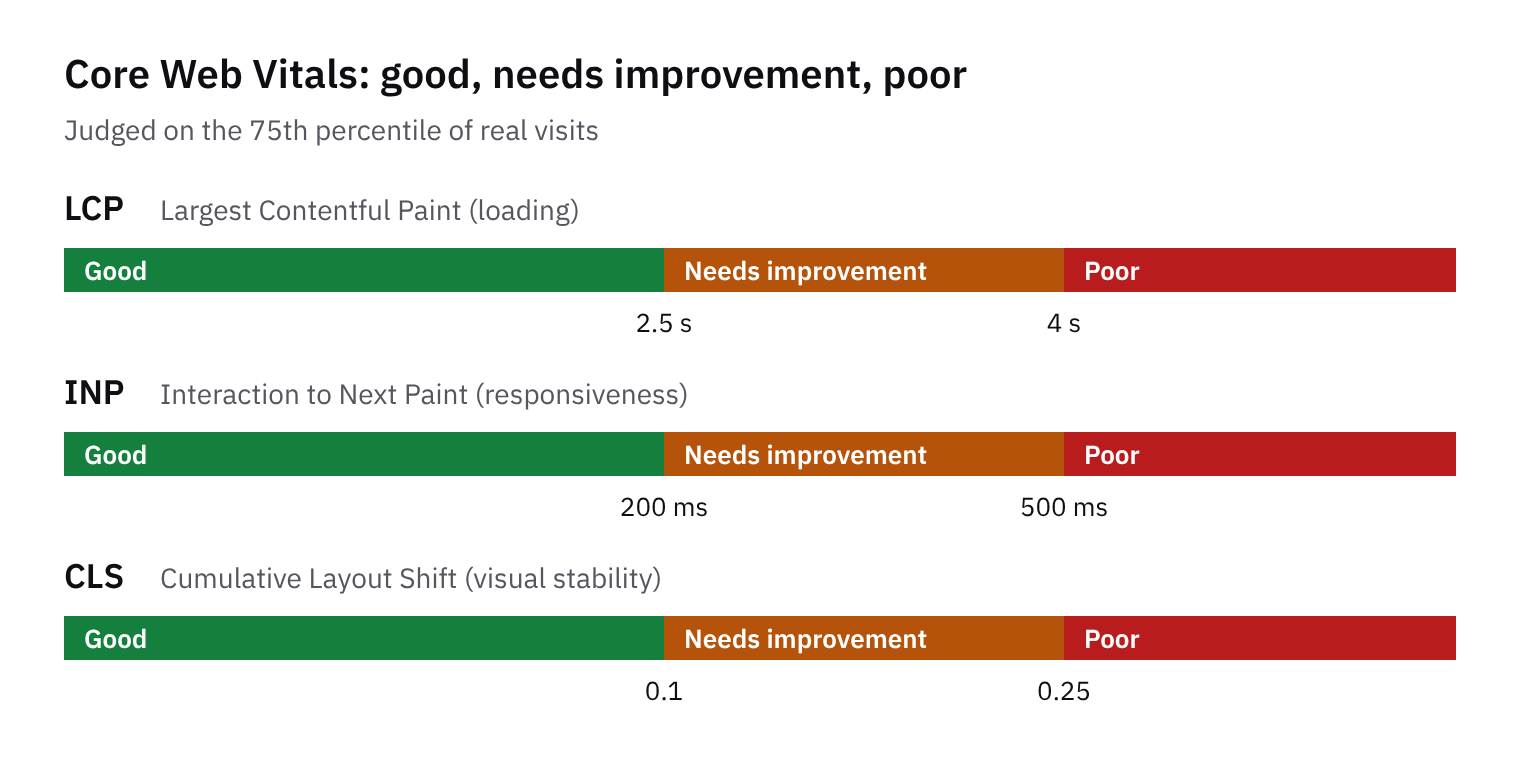
The good thresholds, from web.dev, are simple. LCP within 2.5 seconds, INP of 200 milliseconds or less, and CLS of 0.1 or less. A page passes only when it meets all three at the 75th percentile, meaning three in four visits need to be at or better than the target. Tip: write those three numbers into your project brief, so "faster" has a clear finish line.
How do typical stores look? Of the 193 Liquid theme stores in our sample with data, 72% pass all three, and their median LCP is 1.9 seconds. Headless stores pass at 51%. We wouldn't read that as Liquid good, headless bad, since a headless build can be tuned too. It does suggest that a well-kept Liquid theme is a solid starting point, and that most of the gains come from not undoing what the platform already does for you.
Get the hero image right first
Start with the largest image or text block at the top of the page, because that is usually what LCP (Largest Contentful Paint, the time the biggest visible element appears) measures. Shopify's theme performance guide is blunt about the first rule: never lazy-load that image. Lazy loading holds it back until layout has finished, so anything visible in the first screen should load eagerly. Then mark it with fetchpriority set to high. The guide calls this a one-line change with measurable LCP improvement, and it tells the browser to fetch the image before other resources.
Typical page load time (median LCP)
Show the data
| Shopify, Liquid theme | 1.9 s |
|---|---|
| Shopify, headless | 2.2 s |
| Salesforce Commerce Cloud | 2.5 s |
| Other and custom | 2.2 s |
Next, look at what happens after the image arrives. The same guide warns that fade-in and reveal animations can delay the LCP event even after the download finishes, so show the hero straight away. Keep hero content, product info and navigation in server-rendered Liquid rather than moving them into client-side JavaScript, which delays LCP. In our sample, Liquid themes have a median LCP of 1.9 s against 2.2 s for headless stores. That fits this advice, though it doesn't prove the cause. Use preload sparingly too: the guide says to reserve it for one or two resources the browser discovers late, as overuse competes with the browser's own prioritisation.
Now put lazy loading where it belongs: below the fold. MDN describes the loading attribute as a way to defer off-screen images, iframes and video until the user scrolls near them. That suits collection grids, review photos and footer content. A practical tip: in your theme, add loading lazy to every image after the first section, and check the hero image in the rendered HTML to confirm it carries neither lazy loading nor an animation class.
Keep Liquid and the theme lean
Start with Liquid, because Shopify renders it on the server for every page request. Shopify's performance guide says the time spent running your Liquid code directly determines Time to First Byte (TTFB), which is how long the browser waits for the first piece of the page. So before you tweak anything, run the Shopify Theme Inspector for Chrome. It shows which Liquid lines are slowest, so you fix the real cost rather than guess. Keep pagination sensible too. The same guide says to stay under 25,000 objects, because deeper pagination is resource-intensive and slows all requests on the server.
Next, let Shopify do the plumbing. Reference assets with the asset_url and image_url filters instead of hard-coding cdn.shopify.com. Shopify then renders the right asset host for each request, and asset_url adds version numbers so a replaced image actually updates. Images linked without it may not change for a day or more. The same goes for images in your CSS: a bare URL is static, so build it with asset_url there as well. You also don't need to hand-tune file size much. Shopify's platform docs say its CDN, backed by Cloudflare, minifies and compresses files automatically with Brotli and gzip. CSS and ES5-compatible JavaScript are minified on request, and files already named .min.js or .min.css are served unchanged. Don't spend a day on a build step that duplicates this.
Finally, protect streaming. Shopify's platform docs explain that streamed HTML sends the layout up to content_for_header first, so the browser can fetch stylesheets, fonts and scripts while the sections are still rendering. That helps FCP and LCP. Only pages rendered from JSON templates qualify, and .liquid templates aren't streamed yet, so prefer JSON templates. Leave content_for_header alone: wrapping, filtering or relocating it turns streaming off for every page that uses the layout. A quick check in code review is worth it, because one tidy-up in theme.liquid can quietly undo the gain. JSON templates also let you build pages from sections, which the sections docs say can number up to 25 per template, so keep them to what the page needs.
Fonts, CSS and scripts
Start with fonts, because text can sit invisible while the browser waits for them. MDN notes that font requests are delayed by default until the render tree is built, which can delay text rendering. You can override that by preloading your one or two key font files with a preload link and setting the font-display descriptor in your CSS. Preload only what the first screen needs. The Shopify performance docs warn that overusing preload competes with the browser's own prioritisation.
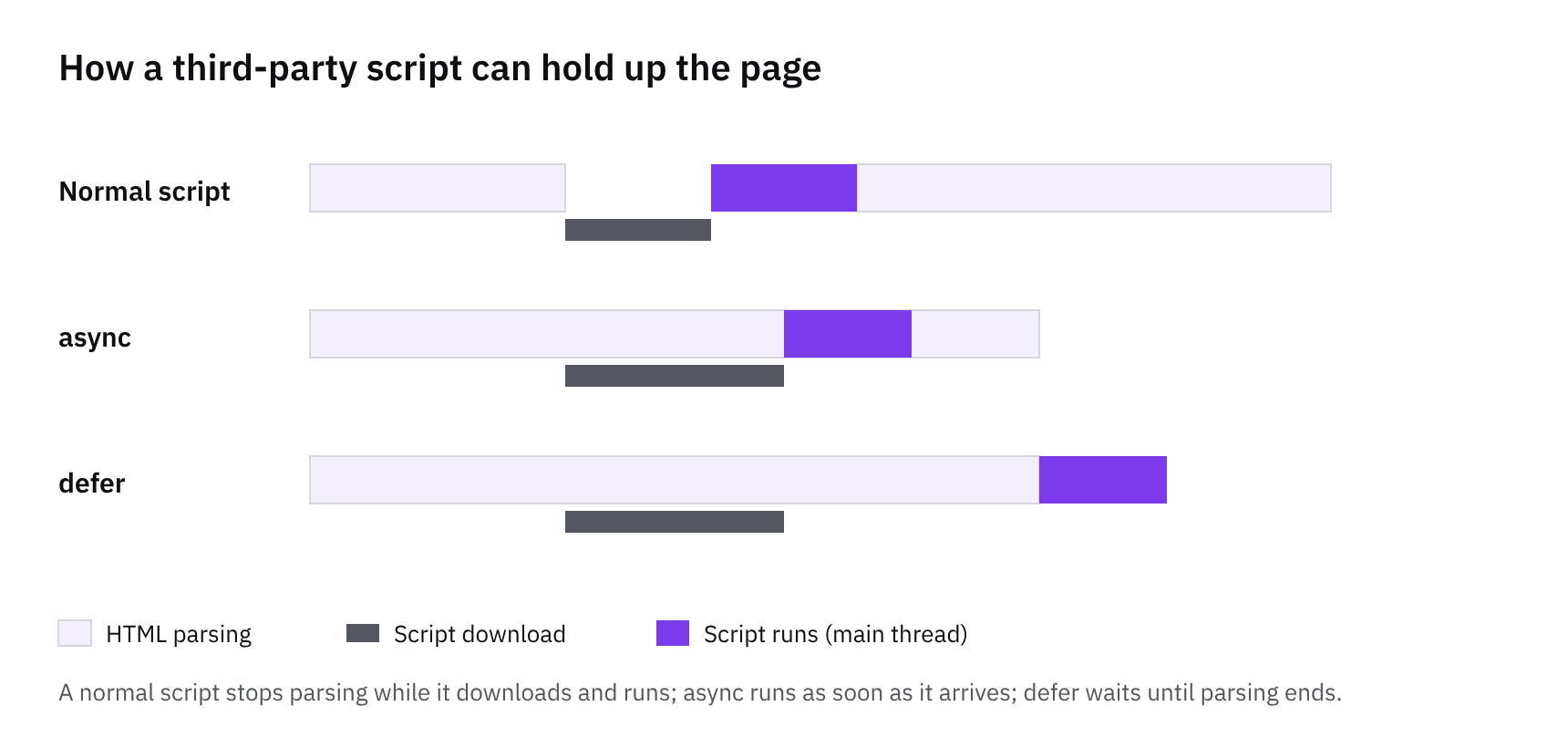
Next, keep CSS thin. MDN says CSS is render-blocking by default, so the browser paints nothing until it has processed it. Split out styles that only matter in certain places and use media queries so they don't block rendering. Shopify's platform docs say it minifies CSS and ES5-compatible JavaScript automatically, so you don't need a build step just for that. Do reference assets through the asset_url filter, including images used in CSS, so changed files update properly.
For scripts, defer by default. MDN says any script tag with type module is deferred, which is a simple way to stop theme JavaScript blocking the page. Shopify's sections documentation also lets a section bundle its own JavaScript and stylesheet with the javascript and stylesheet Liquid tags. This tends to help because a page then carries code only for the sections it actually uses. Finally, audit your third-party scripts. Open the theme and the store's tracking settings, list every tag, and remove anything nobody can explain or use. Unused code still costs the visitor a download.
Check the result with field data
Fix things in theme code, then check them with field data. That means real visits from real Chrome users, collected in the Chrome User Experience Report. PageSpeed Insights and Search Console's Core Web Vitals report both draw on it, so you don't need to add tracking to see how visitors experience the store. A page passes when it meets the targets at the 75th percentile for all three metrics: LCP within 2.5 seconds, INP at 200 milliseconds or less, and CLS at 0.1 or less, according to web.dev.
Lighthouse is a lab test. It loads the page in a simulated setting with no user, so it cannot measure INP. Total Blocking Time is the lab stand-in, so watch that while you work. Treat it as a hint, though, because web.dev is clear that lab measurement is not a substitute for field measurement. Devices, networks and real interactions all vary. If you want your own readings, the web-vitals JavaScript library measures each metric with a single function call and matches how Google's tools report them.
Here's a routine that works. Change one thing, such as removing lazy loading from the hero image or adding a fetch priority to it. Re-test in the lab. Then wait for the field data to catch up before touching anything else. Field reports lag, so changing five things at once leaves you unable to say which one helped. Before you start, Shopify's performance guidance suggests running the Shopify Theme Inspector for Chrome to find the slowest Liquid lines, so you aim at a real cost rather than a guess.
How we measured this
Of 312 stores we index that Chrome reports Core Web Vitals for, not the whole market.
Core Web Vitals and device mix come from the Chrome UX Report: real Chrome visits over the previous month, at the 75th percentile. Stores with too little Chrome traffic aren’t in it.
Platform and front end are detected from public HTML and headers; groups with fewer than 8 stores are left out.
Get the weekly digest
One email every Monday: the week’s new guides and articles, plus the Shopify deadlines coming up and what’s been announced. Free, and you can unsubscribe in one click.
Sources
- https://shopify.dev/docs/storefronts/themes/best-practices/performance · shopify.dev · accessed 16 Oct 2026
- The Shopify platform · shopify.dev · accessed 16 Oct 2026
- Sections · shopify.dev · accessed 16 Oct 2026
- Web Vitals | Articles | web.dev · web.dev · accessed 16 Oct 2026
- Lazy loading - Performance | MDN · developer.mozilla.org · accessed 16 Oct 2026
- Chrome UX Report (CrUX) on BigQuery · Google · accessed 16 Oct 2026
- How CommerceGeek measures · CommerceGeek · accessed 16 Oct 2026
AI-assisted, reviewed by Scott. Every claim is checked against the sources above.