

What brands put on their product pages
Reviews sit on most product pages we read, while subscriptions and bundles are far rarer. Here's what each feature does and how to build it on Shopify.

- Published
- 15 Oct 2026
- As of
- 17 Oct 2026
We read the product pages of 287 stores and checked which features turned up. This guide walks through the common ones, why they tend to help shoppers, and how you'd build them in a Shopify theme or a Hydrogen storefront. Treat the shares as lower bounds, since scripts that load late can be missed.
The near-universal basics: reviews and recommendations
Reviews and recommendations sit at the top of the chart. Reviews appear on 73% of the 287 product pages we read, and recommendations on 64%. Neither is quite universal, but they're the closest thing to a standard kit. Reviews tend to help because shoppers can't handle the product, so other buyers' words fill the gap. Recommendations help because they give someone who isn't convinced by this product a next step that isn't the back button. Both also lean on the shopper's own judgement, which is why they feel less pushy than a banner.
What’s on the product page
Show the data
| Reviews | 73% |
|---|---|
| Recommendations | 64% |
| Variant swatches | 52% |
| Product video | 47% |
| Stock messaging | 43% |
| Size guide | 41% |
| Back-in-stock alerts | 39% |
| Buy now, pay later messaging | 39% |
| Sticky add to cart | 38% |
| Questions and answers | 33% |
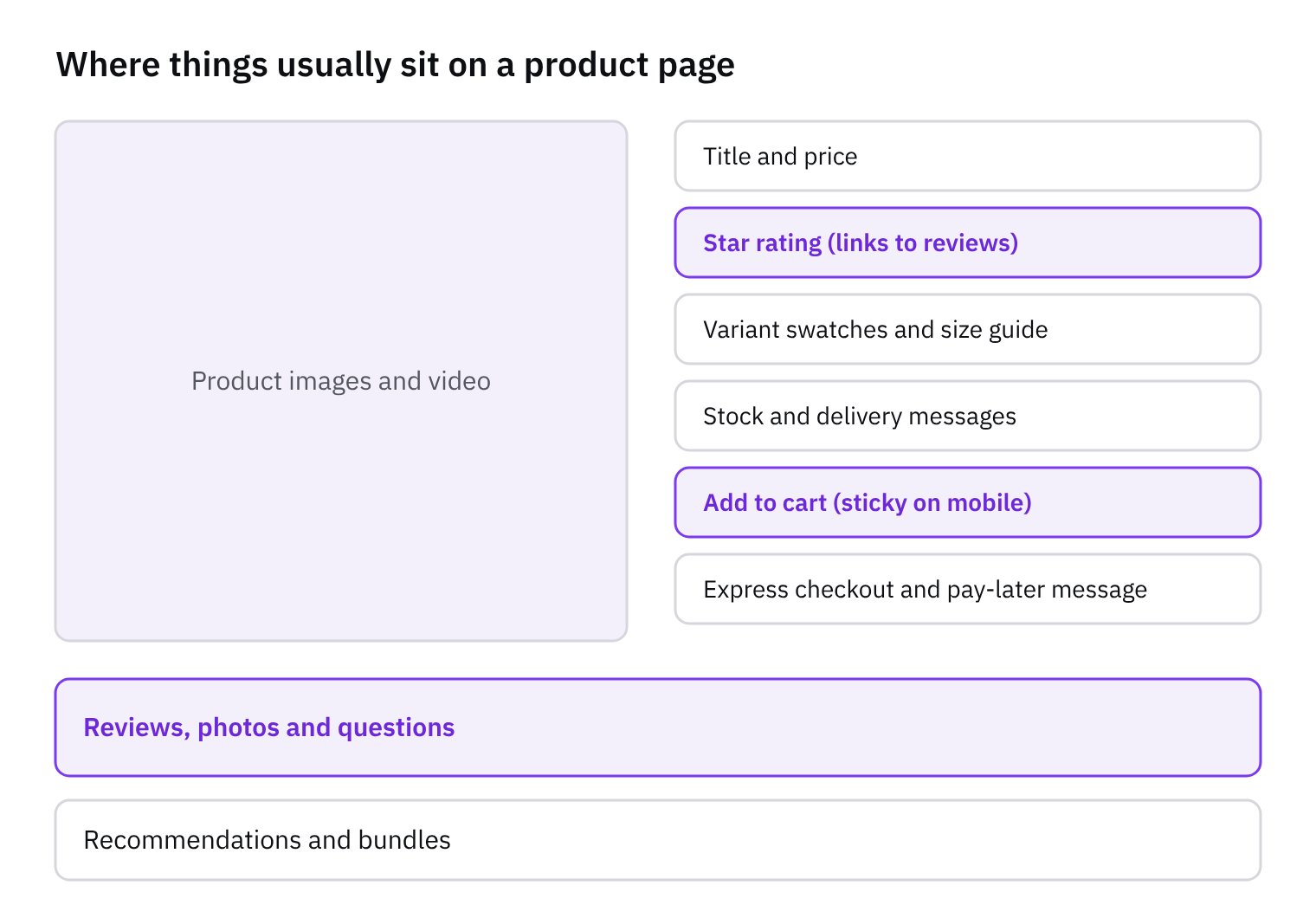
On Shopify, the easiest route for reviews is an app that ships a theme app extension. That gives you an app block you can drop onto the product template in the theme editor, with no code edits. Merchants like that because they can move it around themselves. One tip: put the star rating near the title and price, and the full review list further down, so the proof is visible early without pushing the buy button away. If you want more control, you can render ratings in Liquid from product metafields that the review app writes to.
For recommendations, you have a native option. Shopify's Search & Discovery app powers related and complementary products, and your theme can show them in a section. On Hydrogen or any headless build, you'd call the Storefront API's product recommendations query and render the results yourself. Whichever route you take, pick the one that adds the least JavaScript, because both features are easy to over-install. Be careful with the caveat on the chart: widgets injected after load can slip past our reading, so the true figures may be a little higher.
Helping people choose: swatches, video, size guides and stock messaging
These four features all do the same job: they cut down the "what will I actually get?" doubt. Swatches show up on 52% of the product pages we read, video on 47%, stock messaging on 43% and size guides on 41%. None of them is universal, so there's room to stand out. Because we read public HTML only, treat those as floors rather than exact counts.
Start with swatches, since they're the cheapest win. Build them from your variant options rather than hard-coding anything: loop over the product's options in Liquid and render each value as a swatch input. Map colour names to a colour or an image through metafields or metaobjects, so merchants can edit them without touching code. Swatches tend to help because shoppers see every choice at once instead of opening a dropdown to find out. For video, add it as product media, so it sits in the same gallery as your images and works with the theme's media handling. Keep it short and let it show the thing photos can't, like scale, movement or fit. Load it lazily, so it doesn't slow the page.
Stock messaging and size guides handle the last bits of hesitation. For stock, use the inventory quantity of the selected variant and show a message only when it's genuinely useful, such as low stock. Be honest here. A fake countdown costs you trust faster than it earns urgency. Remember that inventory data is per variant, so update the message when the shopper changes option. For size guides, put the link next to the size picker, not buried in a tab, and open it in a modal or drawer so people don't lose their place. A guide that matches the product's own measurements tends to help most, because it can reduce returns as well as doubts at the buy button.
Nudging the purchase: BNPL, sticky add to cart, back-in-stock and the rarer extras
BNPL messaging (39%), back-in-stock alerts (39%) and sticky add to cart (38%) sit in the middle of the table. Questions, bundles and subscriptions are rarer, at 33%, 29% and 26%. None of these is universal, so there's room to stand out.
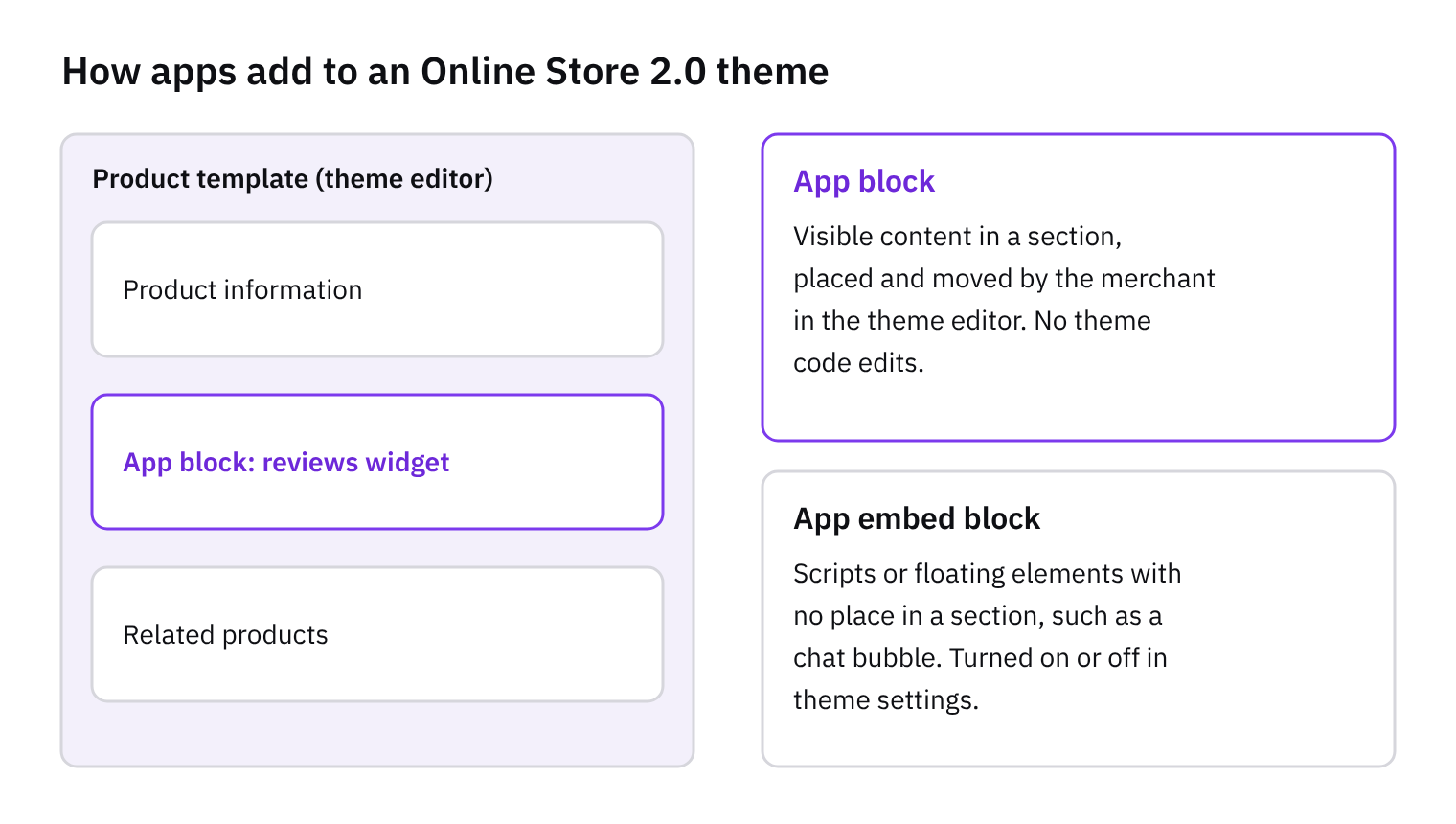
Each tends to help for a simple reason. BNPL (buy now, pay later) messaging shows a split payment option before checkout, which can soften the sticker shock on pricier items. A sticky add to cart keeps the button in view on long mobile pages, so shoppers don't have to scroll back up. Back-in-stock alerts capture interest in sold-out items instead of letting it walk away. Questions and answers deal with objections in public, bundles can raise basket size with sensible pairings, and subscriptions suit products people reorder. Our tip: pick the one that matches your catalogue's real friction, not all six.
On Shopify, build these as theme app extensions where you can. App blocks let merchants place a widget from the theme editor, and app embeds switch on site-wide pieces like a sticky bar. That keeps the theme code tidy, and removing the app removes its code. No leftover snippets to hunt down.
Watch the cost, though. Every widget usually brings its own third-party script, and they add up in page weight and loading time. Audit what loads on the product page, defer anything that isn't needed above the fold, and for simple things like a sticky button, consider a few lines of Liquid and CSS instead of an app. Because we read public HTML, widgets injected late by JavaScript may be missed, so these figures are likely lower bounds.
What to do next
Start with the basics before you add anything new. Reviews are the clearest example: 73% of the product pages we read have them, so shoppers are likely to expect them. Check that yours are visible near the title and price, and that they load reliably. If you're missing the basics, fix that first. Then look at what customers actually ask you. Support emails, live chat and returns notes will tell you whether a size guide, stock messaging or a delivery note is the missing piece. A feature that answers a real question tends to help because it removes a reason to hesitate or leave.
Sticky add to cart sits at 38%, so it's far from universal. It tends to help on long pages, because the button stays within reach once someone has scrolled past it to read the details. Try it on mobile first. Build it as a theme section or app block where you can, not as a loose script pasted into the theme. App blocks and app embeds are managed from the theme editor, can be switched off cleanly, and leave less debris behind when you uninstall an app. If you work in Hydrogen, build it as a component you control, and keep it small.
Add one feature at a time, and check page weight after each. Every widget brings its own JavaScript, and a pile of them can slow the page and shift the layout around. Look at your Core Web Vitals (Google's page speed measures) before and after, and be ready to remove anything that costs more than it gives back. Adding one thing, checking, then moving on is slower than installing five apps at once. But it's much easier to see what's helping, and what's just weighing the page down.
How we measured this
Of 287 stores we index whose product page we read, not the whole market.
Features and tools are read from each store’s public HTML, so anything added only by JavaScript after the page loads may be missed: treat these as lower bounds.
Get the weekly digest
One email every Monday: the week’s new guides and articles, plus the Shopify deadlines coming up and what’s been announced. Free, and you can unsubscribe in one click.
Sources
- How CommerceGeek measures · CommerceGeek · accessed 15 Oct 2026
AI-assisted, reviewed by Scott. Every claim is checked against the sources above.