

Polaris 2.0 is now stable: how to move your app
Polaris Web Components 2.0 is on the stable CDN channels, but apps stay on Polaris 1.1 until you change your script tag to polaris-2.js.
- Published
- 24 Nov 2026
What changed
Shopify announced on 22 October 2026 that Polaris Web Components 2.0 is now available on the stable Polaris CDN channels. It is the first major release under the CDN's semantic versioning model.
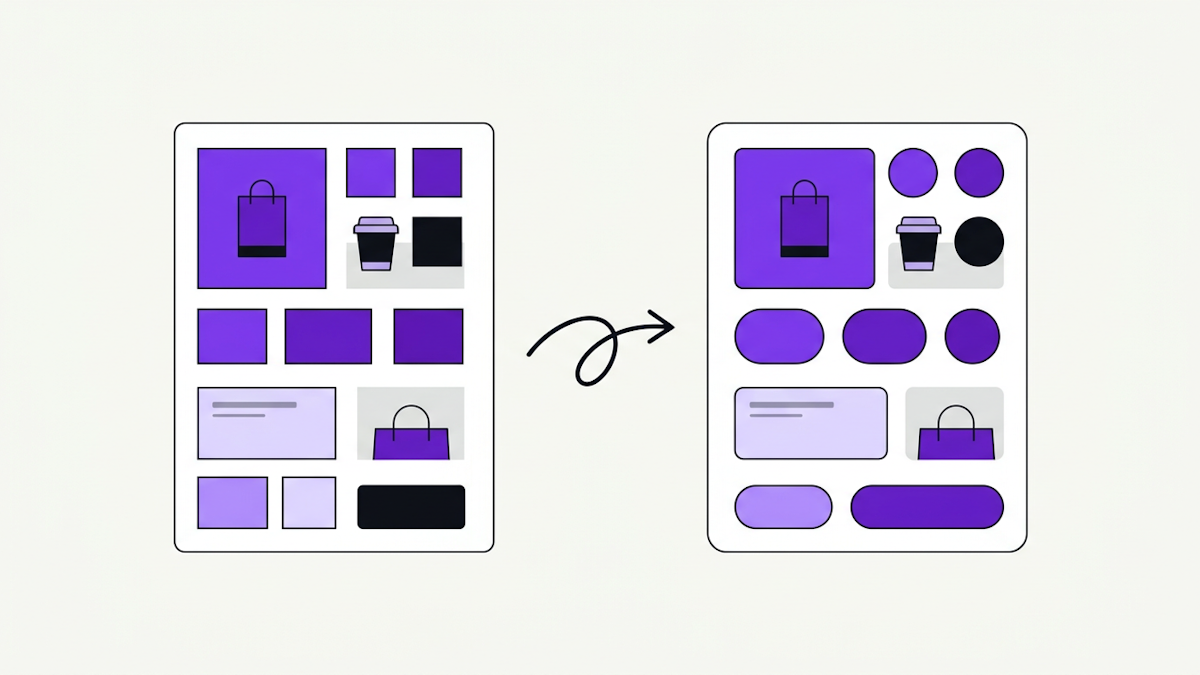
Polaris 2.0 matches the redesigned Shopify admin, which has a new frame, new navigation and a new visual appearance. The 2.0 bundle carries both the current admin theme and the new one, and follows whichever theme the merchant's admin is using. Apps load one bundle and need no flag or per-theme URL.
These two URLs now serve Polaris 2.0:
<script src="https://cdn.shopify.com/shopifycloud/polaris-2.js"></script>
<script src="https://cdn.shopify.com/shopifycloud/polaris-2.0.js"></script>If your app is built entirely with Polaris web components, Shopify says you do not need to change your app's code to adopt the updated styling. You only need to load Polaris 2.0.
Who is affected
Nothing changes for your app automatically. Polaris 2.0 only reaches an app that loads it.
Apps that load
polaris.jsorpolaris-1.jskeep getting Polaris 1.1.polaris.jsnever moves to 2.x.Apps built from the React Router template stay on Polaris 1 if they leave
polarisUrlunset. Both settings are optional and fall back to the unversionedpolaris.js.Apps, or parts of an app, that still render
@shopify/polarisReact components keep the current appearance until you migrate them to Polaris web components. A page that mixes React components with web components will show different styles once the web components are on Polaris 2.0.
If your UI is built entirely with Polaris web components, the sources say you don't need to change your app's code to adopt the updated styling. You only need to load Polaris 2.0. Custom components and custom styling are not restyled by Polaris, so they may need your attention.
What to do
How you move to Polaris 2.0 depends on how your app loads Polaris today. Nothing happens until you change the URL.
Apps with their own script tag
Change the Polaris script tag to polaris-2.js. Keep it after app-bridge.js. The sources do not give a Polaris 1 URL for this example, so the before snippet uses polaris-1.js, which is listed as serving Polaris 1.1.
Before
<script src="https://cdn.shopify.com/shopifycloud/app-bridge.js"></script>
<script src="https://cdn.shopify.com/shopifycloud/polaris-1.js"></script>
After
<script src="https://cdn.shopify.com/shopifycloud/app-bridge.js"></script>
<script src="https://cdn.shopify.com/shopifycloud/polaris-2.js"></script>
Apps built from the React Router template
These apps have no script tag to edit. Set polarisUrl in both AppProvider and the shopifyApp server configuration, and keep the two values identical. If they differ, the browser preloads one Polaris bundle while your app loads another. Both settings need @shopify/shopify-app-react-router 2.1.0 or later. If you leave them unset, they fall back to polaris.js and your app stays on Polaris 1.
Before
<AppProvider apiKey={apiKey}>
  <Outlet />
</AppProvider>
After
<AppProvider
  apiKey={apiKey}
  polarisUrl="https://cdn.shopify.com/shopifycloud/polaris-2.js"
>
  <Outlet />
</AppProvider>
Before
const shopify = shopifyApp({
  // ...
});
After
const shopify = shopifyApp({
  // ...
  polarisUrl: 'https://cdn.shopify.com/shopifycloud/polaris-2.js',
});TypeScript
Match your types to the release you load. If you load polaris-2.js, install the following, and update the script tag and the package together in future.
npm install @shopify/polaris-types@^2.0.0Choosing between polaris-2.js and polaris-2.0.js
Both URLs serve Polaris 2.0 today. They differ in what they serve when later 2.x releases ship.
polaris-2.jsis the stable channel. It serves the newest stable release in Polaris 2, currently 2.0, and advances each time a new 2.x release goes stable. Shopify recommends it for production, because bug fixes, accessibility improvements and new components reach your app without a script-tag change.polaris-2.0.jsserves Polaris 2.0 and is frozen as released. Use it only if you need to lock your app to exactly Polaris 2.0. Published stable versions are immutable except for critical security fixes.
Match your types to the script tag
If you load polaris-2.js, install @shopify/polaris-types@^2.0.0. If you load polaris-2.0.js, install @shopify/polaris-types@~2.0.0, so the package stays on 2.0 like the script tag. For reproducible installs, pin the exact package version instead. Update the script tag and the package together when you move to a new release.
If you loaded the release candidate
Promotion does not update the release candidate URL in place. The stable release publishes at its own URL, so moving to it is a change in your app's code. If your app loads the 2.0 release candidate, change the script tag to polaris-2.0.js for that release, or to polaris-2.js to follow the channel. The sources do not give the release candidate URL, so check which tag your app currently uses.
<script src="https://cdn.shopify.com/shopifycloud/polaris-2.0.js"></script>Audit and test your app
Polaris components restyle themselves when your app loads Polaris 2.0. Anything Polaris doesn't control stays as it is, so check the following before you ship.
Audit your app
Load exactly one Polaris bundle. Loading two scripts makes your app throw an error. Look for a stale tag left by a bundler alias or a shared layout. If you use
AppProvider, check that itspolarisUrlstill matches your server configuration.Load the Polaris tag after
app-bridge.js, so that App Bridge publishes the Shopify admin's signal before Polaris initialises.Replace remaining
@shopify/polarisReact components. They keep the current appearance and won't follow the updated admin, so a page that mixes them with web components will show different styles side by side. The Shopify guide "Migrate from Polaris React" covers the migration.Find CSS built on Polaris token values. Custom CSS that reads Polaris custom properties, or hardcodes values copied from
@shopify/polaris-tokens, stays pinned to the old palette. Replace copied values with your own tokens, or swap custom components for Polaris web components.Check your fonts. The updated admin uses ShopifyInter. If your app hardcodes Inter, or sets its own font stack over Polaris, it keeps the old type. Polaris 2.0 loads the correct faces for the appearance being rendered, so you can remove font loading that exists only to support Polaris.
Compare custom components with Polaris ones. UI you matched to the current appearance by eye, such as cards, badges, banners and empty states, can look visibly off next to restyled Polaris components.
Position fixed-bottom elements above host UI. The updated admin floats UI over the bottom of your app's viewport, such as the Sidekick bar or mobile web navigation controls. App Bridge reports its height as
--shopify-safe-area-inset-bottomand pads<body>for you, so most apps need no change. If you position your own sticky footers or floating action buttons, they are drawn under the overlay unless you use the property. This check doesn't depend on the Polaris version you load.
var(--shopify-safe-area-inset-bottom, 0px)Walk your main flows, including empty states, error states and any screen that appears only after a long setup.
Test both appearances
During the rollout, some users see the updated Shopify admin and others see the current one, so your app needs to be correct in both. Once it loads Polaris 2.0 it follows whichever appearance the surrounding admin renders. You test by viewing your app in each, not by changing anything in your app.
Updated appearance: use a dev store with the new admin design feature preview enabled. You choose a dev store's feature preview when you create it, so if you don't have one, create a new store. With Shopify CLI, run
shopify store create devwith the--feature-preview new_admin_designflag.Current appearance: use any dev store that doesn't have the new admin design.
Deadline
The sources announce no deadline for moving to Polaris 2.0. The date on the changelog entry, 22 October 2026, is when Shopify announced the release. It is not a date by which apps must update.
The sources also do not say that Polaris 1 will be removed or retired. Per the changelog, polaris.js and polaris-1.js keep serving Polaris 1.1, and an app that stays on Polaris 1 keeps the current appearance.
The update guide notes that some users see the updated Shopify admin during the rollout while others see the current one. It gives no end date for that rollout, so we cannot say when the current admin appearance stops being shown. If Shopify publishes a cut-off date for Polaris 1 or the rollout, check the changelog and the versioning page.
Get the weekly digest
One email every Monday: what changed in Shopify, the deadlines coming up and what’s been announced, plus the week’s new guides. Free, and you can unsubscribe in one click.
Sources
- Polaris 2.0 is now stable · Shopify · accessed 22 Oct 2026
- Update your app for Polaris 2 · Shopify.dev · accessed 22 Oct 2026
- Versioning for web components · Shopify.dev · accessed 22 Oct 2026
- App Home · Shopify.dev · accessed 22 Oct 2026
AI-assisted, reviewed by Scott. Every claim is checked against the sources above.