

Preparing a Shopify Theme for Theme Store Submission: Requirements and Common Pitfalls
Theme Store submissions are rejected if they miss any requirement, so plan around the rules, the Skeleton Theme and the theme editor from the first commit.

- Published
- 18 Nov 2026
- As of
- 11 Nov 2026
This guide is for theme developers preparing a first or updated Theme Store submission. It covers what Shopify requires, which codebase you can start from, how to keep the section schema and theme editor behaving, and how to catch problems with Theme Check before you submit.
What the Theme Store requires
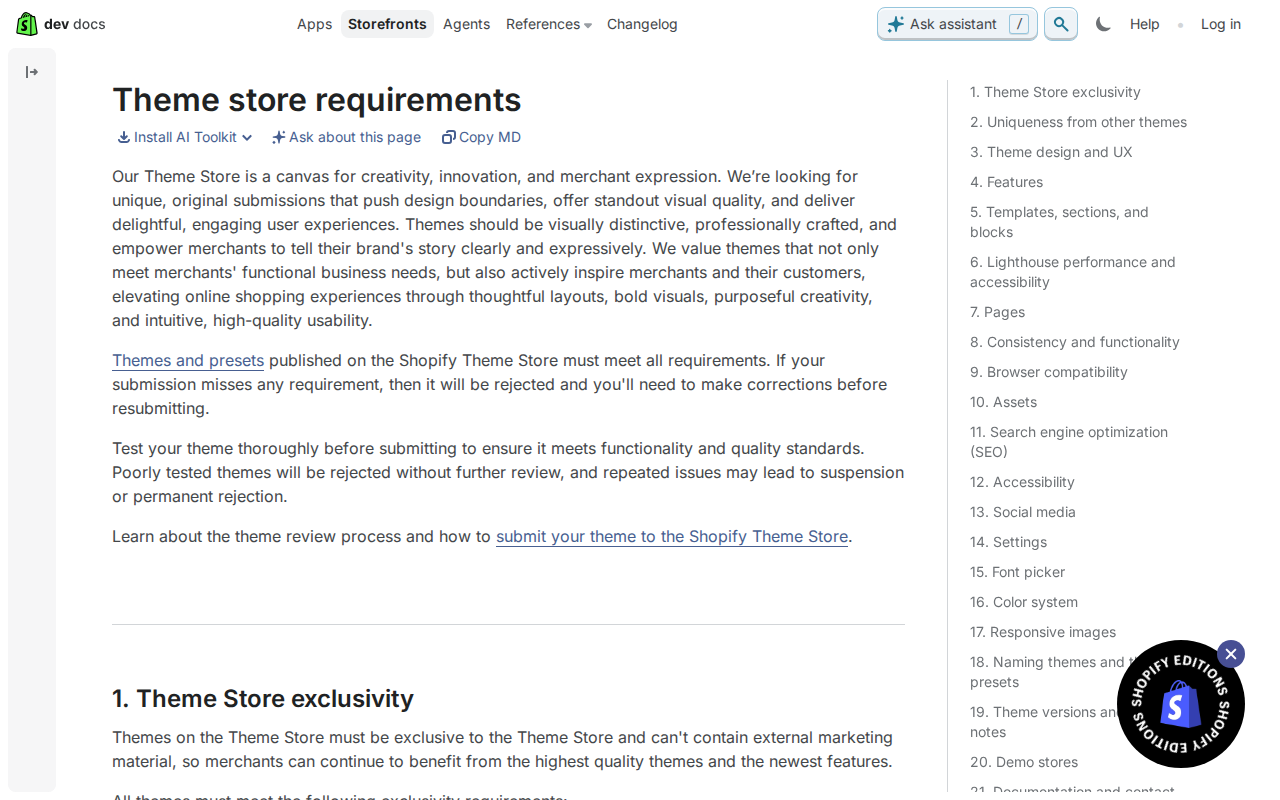
The Theme Store requirements are all-or-nothing. Shopify's requirements page says a submission that misses any requirement will be rejected, and you'll need to make corrections before resubmitting. So treat the list as a checklist you finish before you submit, not a set of goals to hit most of. This tends to save a review round because a single gap costs you the whole submission.
Most of the functional rules are about commerce features working properly. Discounts must show for individual items and for entire orders in the cart, checkout and order templates, and they must be supported on the Cart page. Accelerated checkout buttons must work on the product page and the cart page, and you must not change their branded button colours. Faceted search filtering must work on collection pages and search pages, based on availability, price, type, vendor and variant options. A practical tip: test these with a product that has several variants and an automatic discount applied, because that exposes most gaps in one pass.
Two more rules are easy to miss. Your theme needs a gift card template that renders the page customers see after buying a gift card. It also needs to support image focal points, which merchants can set in the theme editor image_picker setting or from the Files page in the Shopify admin. Build your image output so it respects the focal point, rather than centre-cropping.
The content rules are simple but strict. Theme files can't contain designer credits, such as a link to your own website, or any affiliate links. Themes on the Theme Store must also not be distributed on other marketplaces. Search your theme files for outbound links before you submit, including comments and locale strings, and check where else your theme is listed.
Choosing your starting point: Skeleton, not Dawn
Start from Shopify's Skeleton Theme. The Theme Store requirements page says it is the only approved codebase for Theme Store development. The same page is just as clear about the other route: new submissions built on or derived from Dawn or Horizon are not eligible. If you fork Dawn and ship it with a new colour scheme, you will be rejected, and you'll have lost the time you spent building on it.
Skeleton fits because the theme architecture in Shopify's best-practices guidance is built on templates, sections and blocks. That gives you a modular, highly customisable theme. This tends to help because each section stays small and self-contained, and merchants can rearrange and extend pages in the theme editor without touching code. The guidance also asks for opinionated themes, with a layout, style and feature set aimed at a specific merchant or segment. Starting from a lean base leaves you room to make those choices yourself instead of undoing someone else's.
Our tip: treat Dawn as reading material only. Open it to see how Shopify structures sections, blocks and settings, then close it and build the same ideas in Skeleton. Don't copy files across. Copied code is how derived work sneaks in, and you'd also inherit decisions that don't suit your theme. The best-practices guidance applies whether you're building for one merchant or for the Theme Store, so the habits you build now carry over to client work.
Getting sections and blocks right in the theme editor
Most theme editor errors come from the section schema, so start there. Each section can have only one {% schema %} tag, and it must hold valid JSON only. A second schema tag, or one wrapped inside another Liquid tag, gives you a syntax error when you edit theme code. Keep it at the bottom of the file, top level, and run Theme Check before you push.
Uniqueness is the next trap. Setting IDs must be unique within each section, and block names and types must be unique within each section too. Setting IDs must also be unique within each block. Duplicates cause an error, and copy-pasting a block definition is the usual way they sneak in. A quick scan of the schema after any paste saves a confusing debugging session.
Then wire up the blocks. Put {{ block.shopify_attributes }} on each block's container element, because the theme editor uses it to identify blocks through its JavaScript API. Without it, selecting and reordering blocks in the editor tends to feel broken. Also don't rely on a block's ID value when you loop over blocks. Shopify's section schema docs say it is dynamically generated and subject to change, so use the block type or a setting you control instead.
Think about how merchants see the list, too. A section can have up to 50 blocks, and you can lower that with max_blocks. Static blocks don't count towards the limit. Set a lower cap where a layout would break with too many, such as a tight row of icons. The editor labels each block using a setting with the ID heading, then title, then text, in that order. If none exist, it falls back to the block name. Naming a text setting heading is a small change that makes a long block list readable.
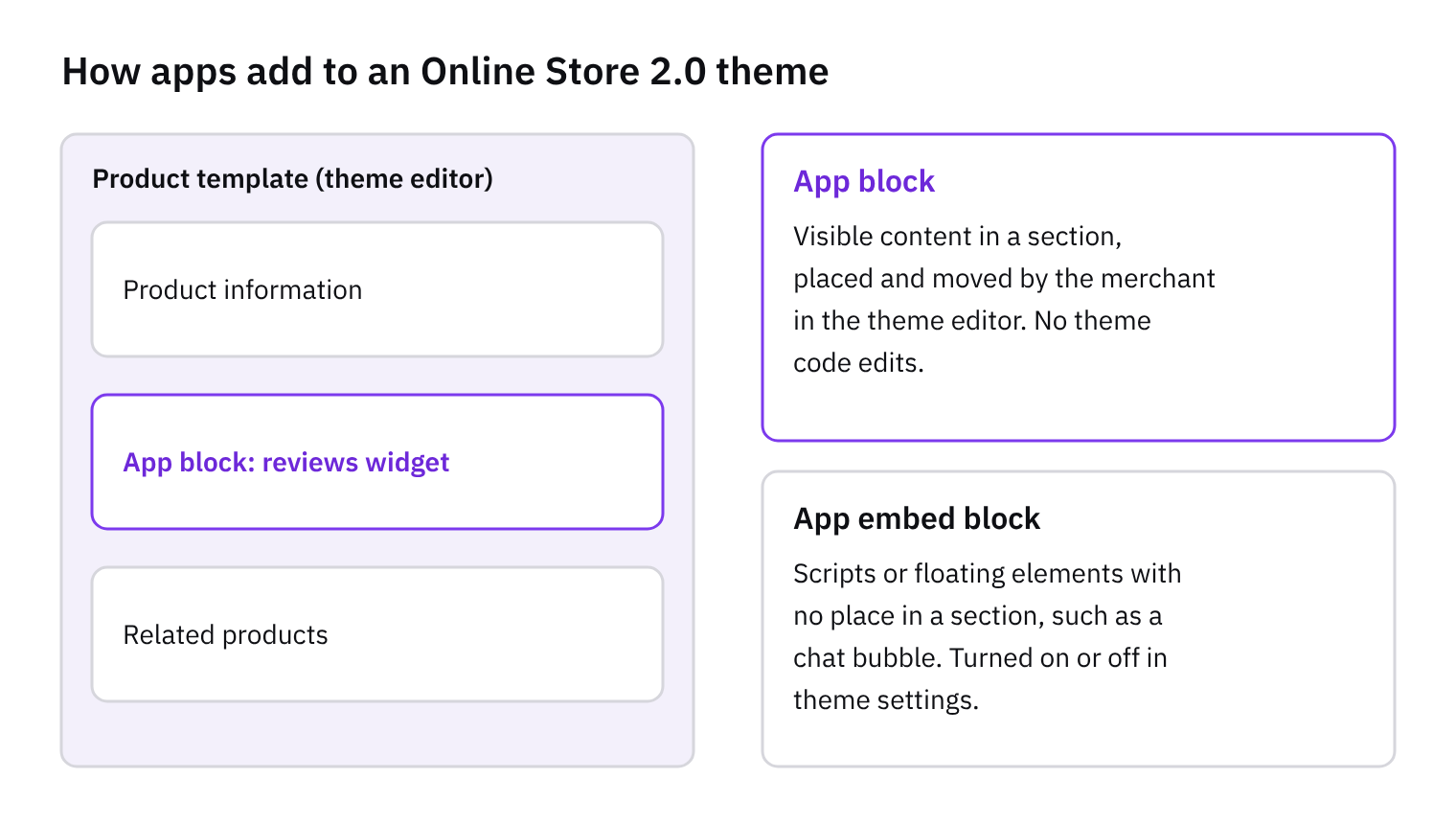
Finally, guide merchants towards the right choices. Include the @theme block type alongside your recommended blocks in the blocks array to highlight them in the block picker. This also matters for app blocks, which merchants add from the same picker. Accept them with @app where it makes sense, so apps can sit inside your layout without code edits.
Catching problems early with Theme Check and tooling
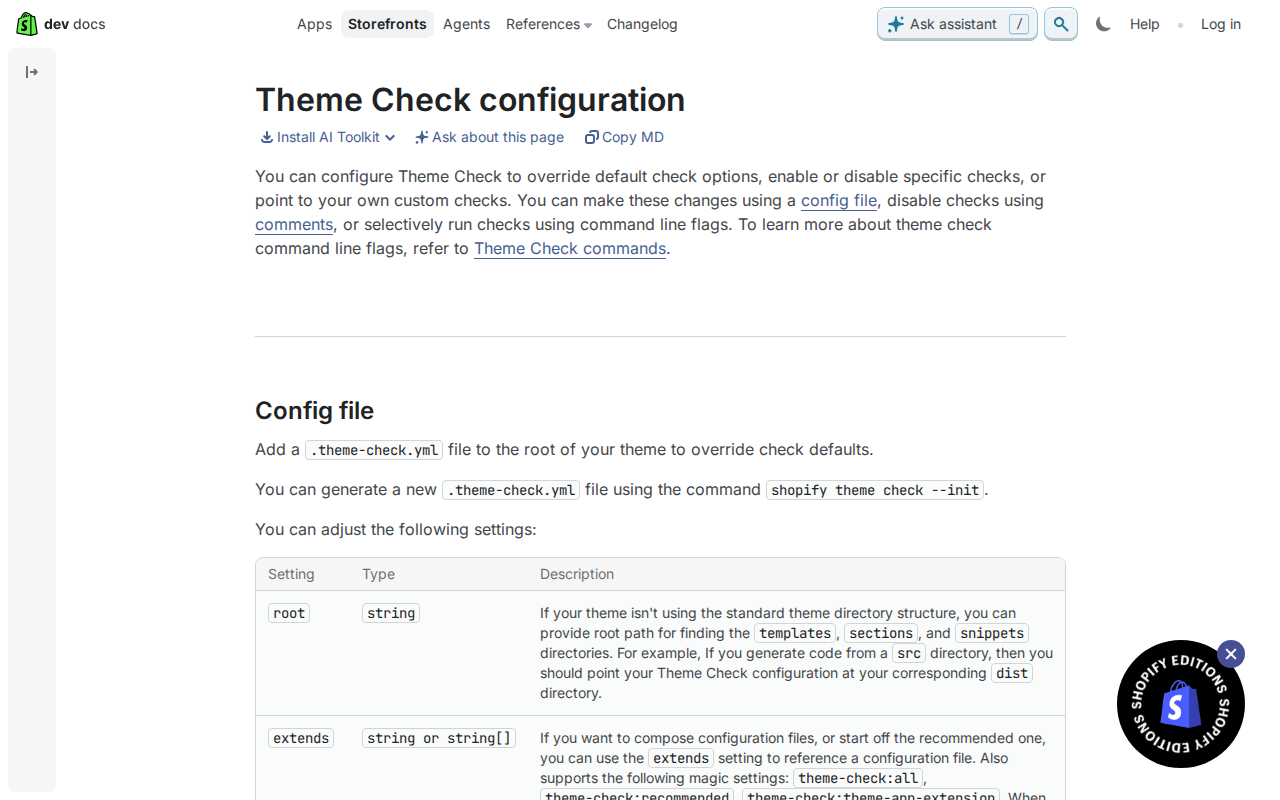
Run Theme Check before you ever open the submission form. It is a command-line linter for themes, and it also ships inside the Shopify Liquid VS Code extension, so you get the same feedback in your editor as in the terminal. Start by running shopify theme check --init, which generates a .theme-check.yml file in the root of your theme. Every setting in that file is optional, so begin small and add rules as you need them.
The extends setting takes the presets theme-check:all, theme-check:recommended and theme-check:theme-app-extension. We'd start with recommended, then move to all once the noise is under control, because a stricter ruleset tends to surface problems while they are still cheap to fix. Use the ignore setting to exclude directories you don't own, such as vendored or generated code, so real issues don't get buried. If you write a custom check, load it with the require setting and enable it in the check settings, or it won't run.
Wire the exit code into CI. By default Theme Check returns exit code 1 when it finds one or more issues with severity error, so a failing build is your cue to stop. Disable comments are handy for a single line, using theme-check-disable-next-line, but there is a catch: the tool only reads them after a file parses. If a file has a syntax error, its comments are ignored, so you can't silence that LiquidHTMLSyntaxError. Fix the syntax first, then suppress anything left.
Around the linter, Shopify CLI is the main tool for building themes locally, and it includes a REPL for trying out Liquid. Lighthouse CI, a GitHub Action, checks performance on every push. The Shopify Theme Inspector for Chrome profiles slow Liquid templates when a page feels heavy. Finally, test in a development store, which is free, and look at your theme in the admin theme editor and code editor too. Shopify asks you to account for both, and that is where merchants will actually meet your work.
Pitfalls and a pre-submission checklist
Most rejections come down to a missed requirement, and the Theme Store requirements page is blunt: a submission missing any requirement is rejected, and you correct it before resubmitting. The usual suspects are the ones that are easy to forget. Check discounts show per item and per order, and work on the Cart page. Check accelerated checkout buttons appear on the product and cart pages with their branded colours untouched. Confirm faceted filtering works on collection and search pages, that a gift card template exists, and that image focal points are respected. Also strip designer credits and affiliate links from the theme files, and make sure the theme isn't sold on other marketplaces. One more point to settle early: the requirements name Shopify's Skeleton Theme as the only approved codebase, and say new submissions built on or derived from Dawn or Horizon aren't eligible.
Editor errors are mostly schema slips. Each section gets a single schema tag, containing only valid JSON and not wrapped in another Liquid tag, otherwise you get a syntax error when editing theme code. Keep setting IDs unique within a section, and block names, block types and per-block setting IDs unique too. Add block.shopify_attributes to each block's container so the theme editor can identify it. Never rely on a block's literal ID when iterating, because it is generated dynamically and can change. A tip that tends to help: name a setting heading, title or text on blocks, since the editor uses those, in that order, as the block title and falls back to the block name.
The best-practice points are cheap to follow if you start with them. Use as little JavaScript as you can and lean on native browser features. Build accessibility in from the first template rather than patching it later. Design for mobile first, since most traffic is mobile. Keep merchant options simple and intuitive, and never obfuscate code or manipulate search engines. Before you resubmit, run through this list: every requirement above is covered; no credits, affiliate links or other-marketplace distribution; Theme Check passes with no errors; each schema is valid, with unique IDs and shopify_attributes on blocks; the editor loads each section without errors; and the theme is accessible, mobile-friendly and light on JavaScript.
Get the weekly digest
One email every Monday: the week’s new guides and articles, plus the Shopify deadlines coming up and what’s been announced. Free, and you can unsubscribe in one click.
Sources
- https://shopify.dev/docs/storefronts/themes/store/requirements · shopify.dev · accessed 11 Nov 2026
- https://shopify.dev/docs/storefronts/themes/tools · shopify.dev · accessed 11 Nov 2026
- https://shopify.dev/docs/storefronts/themes/architecture/sections/section-schema · shopify.dev · accessed 11 Nov 2026
- https://shopify.dev/docs/storefronts/themes/tools/theme-check/configuration · shopify.dev · accessed 11 Nov 2026
- https://shopify.dev/docs/storefronts/themes/best-practices · shopify.dev · accessed 11 Nov 2026
AI-assisted, reviewed by Scott. Every claim is checked against the sources above.