

Turning Social Media Traffic into Shopify Orders: A Practical Checklist
A step-by-step checklist for diagnosing a first social campaign that brought visitors but no orders: tracking, speed, product pages and checkout.
- Published
- 27 Oct 2026
- As of
- 26 Oct 2026
You ran a social campaign, people clicked, and nobody bought. Before you blame the creative or the audience, check the store itself. This checklist is for merchants and the developers who support them, and it works from tracking through to checkout so you can find where visitors dropped out.
Start by checking your tracking
Before you judge the campaign, check you can see what happened. If tracking is patchy, a quiet campaign and a broken measurement setup look exactly the same. Shopify's Web Pixels API is the place to start. It gives you controlled access to browser APIs and lets you subscribe to customer events. Shopify publishes and maintains a list of standard events, such as page_viewed, product_viewed and the checkout progression events. Those cover the path from landing to order, so they are what you want to see firing.
There are two ways a pixel gets onto the store. Custom pixels are configured in the pixel manager in the Shopify admin and run in a lax sandbox. App pixels, which come with an installed app, load in a strict sandbox. Custom pixels don't have access to the settings property that app pixels get. This tends to matter in practice because it shapes who owns the setup: a custom pixel is yours to edit, while an app pixel behaves as the app's developer built it.
As a developer, you'd write a custom pixel that subscribes to the standard events and forwards each one to your analytics or ad platform. The init object gives you a snapshot of the page at render time, including cart and customer data, so you don't have to scrape the DOM. The browser property gives you cookie, localStorage and sessionStorage methods, which run asynchronously in the top frame. That is where you'd read or store a campaign identifier from the landing URL, so it survives to checkout.
Now the tip: click through your own ad link as a customer would. Land on the page, view a product, add to cart and start checkout. Confirm each step fires an event in the platform you're judging the campaign on. Do it on a phone too, since that is where most social traffic arrives. Finally, the Web Pixels API documentation says the contents of the all_events style subscriptions can change as events are added or modified. So repeat this click-through after any app or platform update, not just once at launch.
Make the landing page match the ad
Social visitors arrive cold. They were scrolling a feed a second ago, and they have only the ad to go on. This tends to work best when the landing page carries on exactly what the ad promised: same product, same image, same offer, same wording. If the ad shows a green jacket and the page opens on a general banner, people have to work out where the jacket went, and many won't bother.
So send traffic to the specific product or collection in the ad, not the home page. Then open the link on a phone before you spend anything. Social traffic tends to be mostly mobile in practice, so the phone is where the page really gets judged. Check that the ad's product is visible without scrolling, that the offer is repeated, and that the add to cart button is easy to reach. Test the page speed too. web.dev says LCP, the time for the main content to appear, should occur within 2.5 seconds of the page first starting to load, and it recommends field data over lab runs because performance varies by device and network.
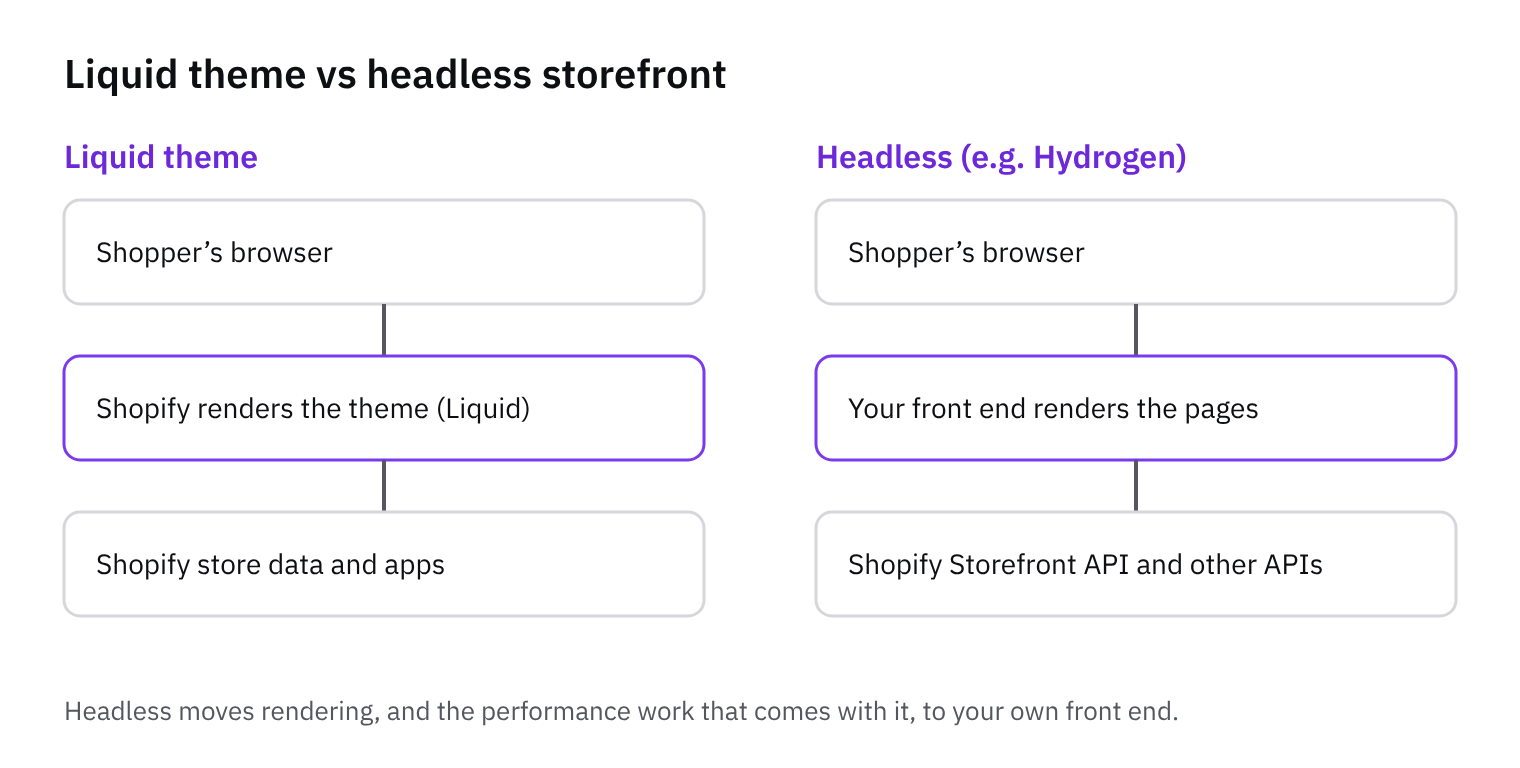
On the build side, you have two sensible routes. In a Liquid theme, create a dedicated template or section for campaign pages, so merchants can swap the headline, image and offer without touching the main product template. On a headless build, add a Hydrogen route for the campaign instead. Either way, keep the page light and keep tracking working: Shopify's Web Pixels API publishes standard events such as page_viewed and product_viewed, so you can confirm that the campaign page registers visits before you blame the ad.
Test speed on real devices, not just in a lab
Social traffic is mostly mobile, and mobile is where slow pages hurt most. Core Web Vitals are the subset of Web Vitals that apply to all web pages, and web.dev says all site owners should measure them. There are three. LCP is how quickly the main content appears. INP is how quickly the page responds when someone taps. CLS is how much the layout jumps around while loading.
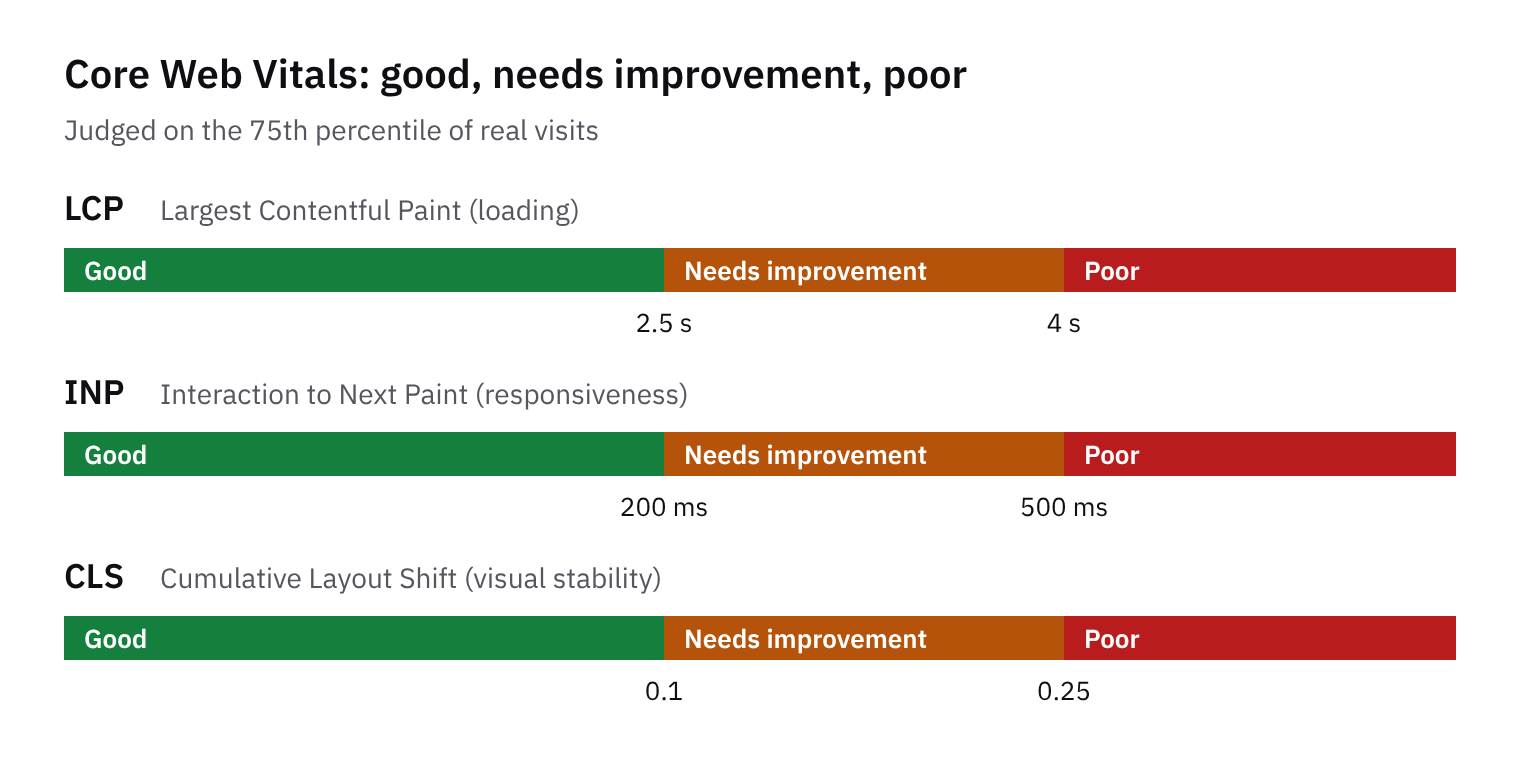
web.dev gives the thresholds for a good experience. LCP should occur within 2.5 seconds of when the page first starts loading. INP should be 200 milliseconds or less. CLS should be 0.1 or less. It suggests measuring at the 75th percentile of page loads, segmented across mobile and desktop. Check your landing page against all three, and look at mobile separately, because a healthy desktop result can hide a poor mobile one.
Don't stop at a Lighthouse run. web.dev notes that Lighthouse loads pages in a simulated environment with no user, so it cannot measure INP and uses Total Blocking Time as a proxy. It also says lab measurement is not a substitute for field measurement, since performance varies by device, network and user interaction. The tip: add the web-vitals JavaScript library to collect field data from real visitors. web.dev describes it as a small, production-ready wrapper that measures each metric the way Google tools report it.
The usual pitfall is script weight. Every app embed, tracking pixel and chat widget on a landing page is extra JavaScript the visitor's phone has to download and run. This tends to hurt both responsiveness and layout stability. Audit what loads on the page your ads point to, and remove anything that isn't earning its place there. Then re-test in the field to see whether it made a difference.
Check the product page does its job
A first-time visitor from social has seen a post, not your brand. On the product page they need to see the price, the images, the key details, reviews if you have them, and a clear add to cart button, all without hunting. This tends to help because people arriving from a feed decide quickly, and anything they have to search for is a reason to go back to the app.
Here's a quick tip. Open the page on a small phone screen, the smallest you can find, and check the add to cart button is visible without excessive scrolling. If you have to scroll past a long gallery, a block of badges and a banner to reach it, move things around in the theme editor. Put price and button near the top, and push the longer description lower down.
Then watch the page as it loads. Late-loading app widgets, such as review stars or upsell boxes, can push the button down just as someone goes to tap it. That is a layout shift, which Core Web Vitals track as CLS. web.dev says a good CLS is 0.1 or less. It also says lab tests are no substitute for field measurement, because devices and networks vary, so check real-user data as well as a Lighthouse run. As a developer, use app blocks in theme sections so widgets sit in a deliberate place with space reserved for them, rather than being injected by scripts that appear whenever they load.
Walk through checkout and decide what to do next
Now walk through checkout yourself. Open the ad link on your own phone, add a product and place a real test order. Look at which shipping options appear, which payment methods are offered and whether any cost shows up late, such as shipping or tax. A surprise at this point is a common reason for people to leave, because they expected one price and see another. Refund the order afterwards.
Then see where real visitors stopped. Shopify's Web Pixels API publishes standard events for checkout progression, alongside page_viewed and product_viewed. Subscribe to them in a custom pixel, which you configure in the pixel manager in the Shopify admin, and compare how many people reached each step. If many reached checkout but few moved on, look at shipping and payment. If few reached checkout at all, go back to the product page. Change one thing at a time and re-run a small campaign, so you can tell what helped.
Work through the checklist in this order, because each step depends on the one before:
Tracking: confirm the pixel events fire, or you can't trust anything else.
Landing match: check the ad promise matches the page people arrive on.
Speed: keep pages fast on mobile, and check field data, since web.dev says lab tests are not a substitute for it.
Product page: make price, reviews and add to cart easy to find.
Checkout: remove cost surprises and offer familiar payment methods.
Get the weekly digest
One email every Monday: the week’s new guides and articles, plus the Shopify deadlines coming up and what’s been announced. Free, and you can unsubscribe in one click.
Sources
- Web Vitals | Articles | web.dev · web.dev · accessed 22 Oct 2026
- Web Pixels API · shopify.dev · accessed 22 Oct 2026
AI-assisted, reviewed by Scott. Every claim is checked against the sources above.